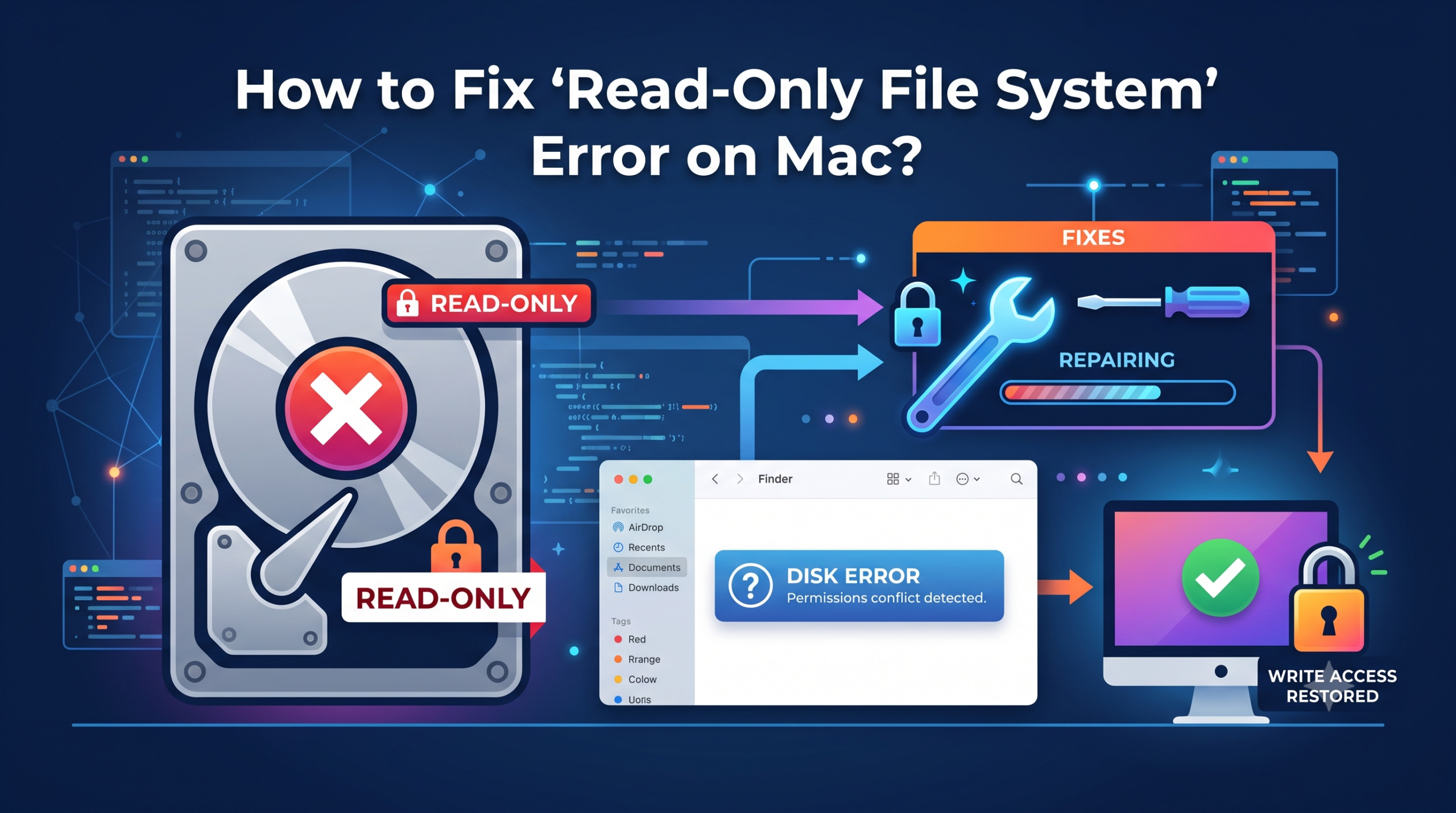
A “Read-Only File System” error on your Mac may disrupt all your processes. No matter whether you want to modify a document, transfer files to an external hard drive, make modifications to a script via Terminal or even move mailboxes, read-only permissions prohibit you from doing so and making any changes to your files/volumes.
In this guide, we will find out why read-only permissions are enforced in macOS and discover how to solve permission problems in a safe manner.
What Causes the Read-Only Error on macOS?
“Read-Only File System” warning message is the default protective mode of macOS. Identification of the root cause of the issue is crucial for finding the proper solution:
1. NTFS File System: External hard disks or flash drives with Microsoft’s NTFS file system format can be read directly by the macOS operating system without additional drivers, but writing to the disk is not possible.
2. Wrong Sharing & Access Rights Settings: User access rights for certain folders, user accounts or external storage may be limited to Read-Only.
3. macOS System Integrity Protection (SIP) and SSV: Newer versions of the macOS operating system (Catalina and higher) use a separate Signed System Volume (SSV), which contains all system files, and cannot be modified by malware.
4. Disk Failure & File System Corruption: In case of disk failure or corruption, macOS sets the volume to read-only mode to prevent additional data loss.
Step-by-Step Solutions to Fix Read-Only File System Issues
Based on whether you are trying to access the information from an external storage device, or from a locally created folder, or a Terminal-level permission problem, please go through the steps below.
Method 1: Change Sharing & Permissions from Finder
In case an external drive or a folder doesn’t allow the writing permission to be accessed, this is the easiest solution.
- Plug in the external drive into your Mac (or open the restricted folder).
- Right click (or Ctrl + Click) on the drive icon and click on Get Info (or press Command + I).
- Scroll down to expand the Sharing & Permissions panel.
- Unlock by clicking the Padlock icon in the lower right corner and enter your administrator password to modify the settings.
- Find your name under the Name column and change its Privilege to Read & Write.
Method 2: Repair the Disk Using First Aid
If there is a corruption of the file system leading to the mounting of the drive by macOS in the read-only state, performing First Aid using Disk Utility will detect and repair the corrupt directory headers.
To use Disk Utility:
Click Command + Space to bring up Spotlight, type Disk Utility, and press Enter.
To Show All Devices:
From the Disk Utility window, go to the View menu located at the top left corner of the window and select Show All Devices.
To perform First Aid on the Volume:
Choose the read-only drive from the left panel, and then press First Aid from the upper toolbar followed by clicking on the Run button.
To Verify that Drive is repaired:
Let First Aid check and repair the catalog trees and allocation files, after which safely unplug and plug in the drive again.
Method 3: Reformat the External Drive (For NTFS Drives)
Since your external drive uses the NTFS file system, your Mac will not be able to write to it. If you want to have full read and write privileges, reformatting to exFAT or APFS is recommended.
Note: Reformatting wipes out everything stored on the selected drive. You should create a backup of your data before doing this process.
Step 1. Launch Disk Utility.
Step 2. Select your drive under the left window pane and press Erase.
Step 3. Select one of the following formats that suits your needs:
- APFS: It is best for Mac-only use and SSD drives.
- Mac OS Extended (Journaled): Suitable for old Mac systems or HDD drives.
- exFAT: Best if you need both read and write privileges on both Mac and Windows.
Step 4. Press Erase.
Method 4: Remount Volumes via macOS Terminal
Terminal provides a means for remounting manually if you have attempted to write data into a particular mount point, system volumes, or custom storage folders.
- Terminal can be launched from Utilities > Applications.
- Execute diskutil list to identify the mounted volumes.
- Try to remount the desired volume using the read-write flag
sudo mount -uw /Volumes/DriveName
- Enter your administrator password.
Pro Tip: Export & Convert Inaccessible Data with MacMister Solutions
While trying to deal with read-only drives, corrupt system volumes, or even locked user profile directories, it can be hard to recover the necessary files, such as email archives, clients’ information, or document databases.
If you want to recover and convert .mbox or .eml files locked within read-only backup drives or even corrupt user profiles, then with the help of MacMister Solutions advanced data management applications, it will be done without any issues.
Why Use MacMister Tools for Read-Only or Corrupted Drives?
- Non-destructive Reading Access: Extracts information from read-only files while not changing the properties of the original file or posing any risks for data loss.
- Bulk Conversion Capabilities: Converts bulk email archives (MBOX, MBX, MBOXCL) to formats such as PDF, PST, EML, MSG, HTML, and CSV.
- Maintains Folder Hierarchy: Maintains original hierarchy, email data, attachments, inline images, and header information.
- Universal macOS Operating System: Works seamlessly on both Apple Silicon (M1/M2/M3/M4) and Intel-based Mac systems running on any recent version of macOS.
Epilogue
Once you have determined the root cause, which could be a problem with the NTFS file system format, volume permissions, or corrupt file system, you will be able to restore all read/write functions to your Mac hard drives.

