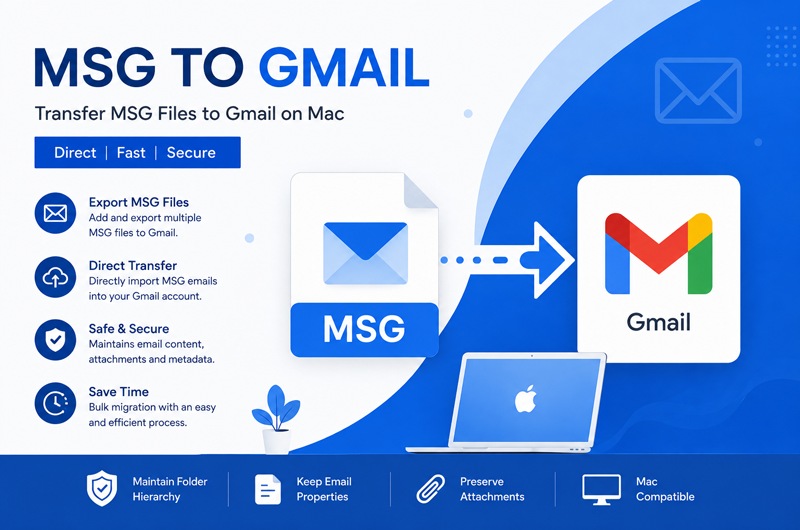
This guide explains why users may need to move MSG files to Gmail, briefly covers the manual approach, discusses its limitations, and introduces the MSG to Gmail Tool for Mac as a direct and convenient solution.
MSG files are commonly created and used by Microsoft Outlook to store individual email messages along with their properties, headers, recipients, and attachments. However, accessing these files directly in Gmail is not straightforward, especially when users have a large collection of MSG files stored on a Mac. Transferring MSG files to Gmail can make emails easier to access, organize, and manage from any device.
MSG is a proprietary email file format associated with Microsoft Outlook. It can contain complete email information, including sender and recipient details, subject, date, message body, and attachments. While MSG files work well within the Outlook environment, users may face compatibility issues when they want to access these emails through Gmail.
Gmail uses its own mailbox structure, so simply uploading MSG files to Gmail is not supported as a direct import option. Users therefore need an appropriate method to transfer their MSG data into a Gmail account.
For Mac users managing multiple MSG files, a dedicated MSG to Gmail migration tool can simplify the entire process and reduce the need for complicated intermediate steps.
Why Transfer MSG Files to Gmail?
There are several reasons why users may want to transfer MSG files into Gmail –
- Access emails anywhere – Gmail allows users to access their messages from computers, smartphones, and tablets.
- Centralized email management – Multiple MSG files can be consolidated into a single Gmail mailbox.
- Reduce Outlook dependency – Users can access important email data without relying entirely on Microsoft Outlook.
- Easy search – Gmail provides powerful search options for locating specific emails.
- Cloud-based storage – Emails stored in Gmail can be accessed without keeping all MSG files locally.
- Preserve important data – Moving old MSG emails to Gmail can help maintain access to valuable communication records.
Manual Method to Transfer MSG Files to Gmail
Gmail does not provide a direct option to upload MSG files as emails. Therefore, users generally need to use an intermediate application such as Outlook. A basic manual approach is –
- Install and open a compatible Outlook application on Mac.
- Open the required MSG files in Outlook.
- Create or configure the Gmail account in Outlook.
- Move or copy the MSG emails into the Gmail mailbox folder configured in Outlook.
- Allow Outlook to synchronize the messages with Gmail.
- Sign in to Gmail through a web browser and verify the transferred emails.
This approach may work for a small number of MSG files, but it becomes inconvenient when dealing with hundreds or thousands of emails.
Limitations of the Manual Method
The manual approach has several practical limitations –
- It can be time-consuming for bulk MSG files.
- Outlook may be required as an intermediate application.
- Handling multiple MSG files individually requires significant effort.
- Folder organization may not always be maintained as expected.
- Attachments and other email properties may require additional verification.
- Large-scale transfers can become difficult to manage.
- Users may encounter compatibility or synchronization issues.
- The process is less suitable for users who want a direct MSG-to-Gmail transfer.
Because of these limitations, users handling large MSG collections often prefer a dedicated migration utility.
How to Import .msg Files to Gmail for Mac – Advanced Solution
The MacMister MSG Converter for Mac provides a direct way to transfer MSG files into a Gmail account. Instead of manually opening and moving individual messages, users can add their MSG files or folders to the software and export them directly to Gmail.
The tool is designed for Mac users who need a simpler approach to handling MSG-to-Gmail transfers. It can process multiple MSG files and helps users avoid lengthy intermediate procedures. The software provides an easy-to-use interface, making it suitable for both technical and non-technical users. Users can select their MSG files, provide the required Gmail account details, and start the transfer process. This direct approach can be particularly useful when users have a large collection of archived Outlook MSG files and want to make them available through Gmail.
Smart Skills of MSG to Gmail Tool
The MSG to Gmail Tool includes several useful capabilities for managing MSG data –
- Direct MSG to Gmail Transfer – The software allows users to transfer MSG files directly to Gmail without requiring a complicated manual workflow.
- Bulk MSG Migration – Users can process multiple MSG files together instead of opening and transferring every file individually. This makes it suitable for bulk email collections.
- Folder-Based Selection – If MSG files are organized into folders, users can select the required folders and process their email data more efficiently.
- Maintains Email Information – The tool is designed to retain important email details such as sender, recipient, subject, date, message content, and attachments during the transfer.
- User-Friendly Interface – The straightforward interface makes it easier to add MSG files, configure the Gmail account, and initiate the transfer without requiring advanced technical knowledge.
- Mac Compatibility – The application is developed specifically for Mac users, allowing them to perform MSG-related email transfer tasks directly within the macOS environment.
Why Choose MSG to Gmail Tool?
Choosing a dedicated tool can make the MSG-to-Gmail process more efficient, particularly when working with a large number of files.
The MSG to Gmail for Mac tool eliminates many of the repetitive steps involved in the manual method. Users do not have to depend on opening each MSG file separately and moving emails one by one. It is especially useful for users who have archived Outlook emails in MSG format and want to bring them into Gmail for centralized access. The software also helps simplify bulk processing while maintaining important email information.
For organizations, professionals, and individual users dealing with extensive MSG archives, a direct migration approach can save considerable time and effort.
FAQs
Q. Can I transfer MSG files directly to Gmail on Mac?
Ans. Yes. A dedicated MSG to Gmail Tool for Mac can transfer MSG files directly to a Gmail account.
Q. Does Gmail support direct MSG file importing?
Ans. No. Gmail does not natively provide a direct option for importing MSG files as email messages.
Q. Can I transfer multiple MSG files at once?
Ans. Yes. The tool supports bulk processing, allowing users to transfer multiple MSG files instead of handling them individually.
Q. Will attachments be transferred with MSG emails?
Ans. The tool is designed to transfer email content along with associated attachments and important message information.
Q. Do I need Outlook for the MSG to Gmail transfer?
Ans. The dedicated tool is intended to provide a direct MSG-to-Gmail transfer process, reducing dependency on Outlook as an intermediate step.
Q. Is the MSG to Gmail tool suitable for large email collections?
Ans. Yes. Its bulk processing capabilities make it more convenient for users managing a large number of MSG files.
Conclusion
Transferring MSG files to Gmail can be challenging because Gmail does not directly support MSG file importing. While the manual method using an intermediate email application may work for a few files, it becomes time-consuming and difficult to manage for bulk data.
The MSG to Gmail for Mac tool offers a more direct and convenient solution. With bulk processing, folder-based selection, a simple interface, and support for important email information and attachments, it can simplify the process of moving MSG archives into Gmail. For Mac users looking for an efficient way to transfer multiple MSG files to Gmail, a dedicated migration tool can be a practical alternative to the manual approach.