
AOL Mail has been used for personal and professional email communication for many years. However, users may prefer Gmail because of its familiar interface, search capabilities, spam filtering, and integration with other Google services. As a result, many Mac users look for ways to add AOL emails to Gmail on Mac.
There are different ways to bring AOL messages into Gmail. You can use Gmail’s built-in account and import features for a basic transfer, but this approach can have limitations when dealing with a large mailbox, multiple folders, or important email data. A dedicated AOL to Gmail tool for Mac can provide a more convenient way to move AOL emails into a Gmail account.
Note – Google is phasing out Gmailify and POP-based third-party mail fetching. Google states that existing POP-based setups will remain available until January 2027, while new users may already face restrictions.
Adding AOL emails to Gmail can mean either connecting the AOL account with Gmail for ongoing access or transferring existing AOL emails into Gmail. These are different requirements.
If your goal is to preserve older AOL emails in Gmail, a proper email transfer is generally more suitable. If you only want to access both accounts from one interface, account linking or a mail client may be enough. Before starting, make sure –
- Your AOL account is active.
- You know your AOL email address and password.
- Your Gmail account has sufficient storage.
- You have a stable internet connection.
- Important AOL emails and attachments are backed up if required.
Why Add AOL Emails to Gmail?
There are several reasons users choose to move AOL emails to Gmail –
- Centralized email access – Manage AOL and Gmail-related communication from one place.
- Better search – Gmail provides powerful search operators for locating old messages.
- Google ecosystem – Gmail works closely with Drive, Calendar, Meet, and other Google services.
- Easy accessibility – Gmail can be accessed across computers and mobile devices.
- Long-term organization – Moving important AOL messages to Gmail can make email management easier.
- Reduced dependency on an old mailbox – Users may want important historical correspondence available in their primary Gmail account.
Manual Method to Add AOL Emails to Gmail Account
Google provides options for adding or importing messages from another email account through Gmail settings. However, the exact options available can change as Google retires older third-party mail features.
Step 1: Open Gmail
- Sign in to the Gmail account where you want to add your AOL emails.
Step 2: Open Accounts and Import
- Go to Settings > See all settings > Accounts and Import.
- Depending on the available Gmail features, look for options such as Import mail and contacts or Check mail from other accounts. Google documents both account connection and one-time import options.
Step 3: Enter AOL Account Details
- Enter your AOL email address and follow the instructions provided by Gmail. Depending on the method available, Gmail may request the AOL account password and server-related information.
- If additional security is enabled on the AOL account, authentication requirements may need to be completed before Gmail can access the mailbox.
Step 4: Start the Import
- Follow Gmail’s on-screen instructions to begin importing the available messages.
Step 5: Verify the Imported Emails
- After the process completes, search Gmail for the imported AOL messages. Check important emails, attachments, dates, and folders to make sure the required data has been transferred.
Limitations of the Manual Method
The built-in Gmail approach can be useful for basic requirements, but it may not be ideal for every AOL mailbox.
1. Gmail Feature Changes – Google is discontinuing Gmailify and POP-based Check mail from other accounts functionality during its 2026–2027 transition. Google recommends alternatives such as automatic forwarding, the Gmail mobile app, or desktop email clients for continued third-party account access.
2. Folder and Label Limitations – Google notes that importing messages from another account does not import folders or labels in the same way as the original account.
3. Large Mailboxes Can Be Difficult – A large AOL mailbox containing thousands of emails and attachments may take considerable time to process. Connection interruptions or authentication problems can also affect the process.
4. Troubleshooting May Be Required – Incorrect credentials, unsupported POP access, server restrictions, or security settings can cause import errors. Google recommends checking account settings and authentication details when imports fail.
5. Limited Control Over the Transfer – The built-in method may not provide the same level of control over which folders or messages are processed as a dedicated migration utility.
How to Add AOL Emails to Gmail Using AOL Mail to Gmail Tool
For Mac users who need a more structured approach to transferring AOL mailbox data, MacMister AOL Mail Backup Tool for Mac can be used as an alternative.
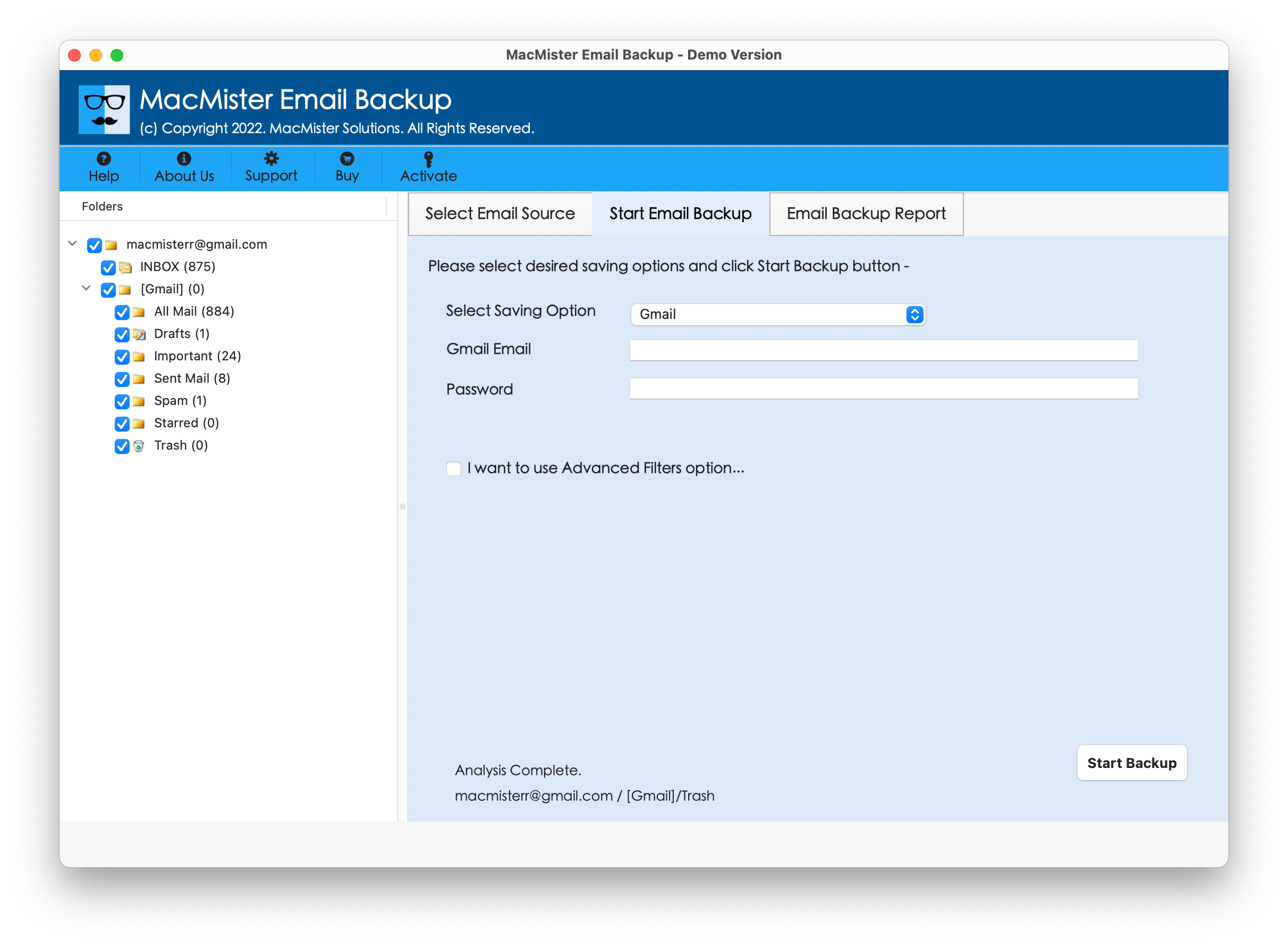
Instead of depending entirely on Gmail’s changing third-party account integration features, a dedicated AOL to Gmail solution is designed specifically around email transfer. This can be particularly useful when working with a large AOL mailbox or when preserving important email content is a priority. A typical workflow involves –
Install and launch the AOL Mail to Gmail Tool on your Mac.
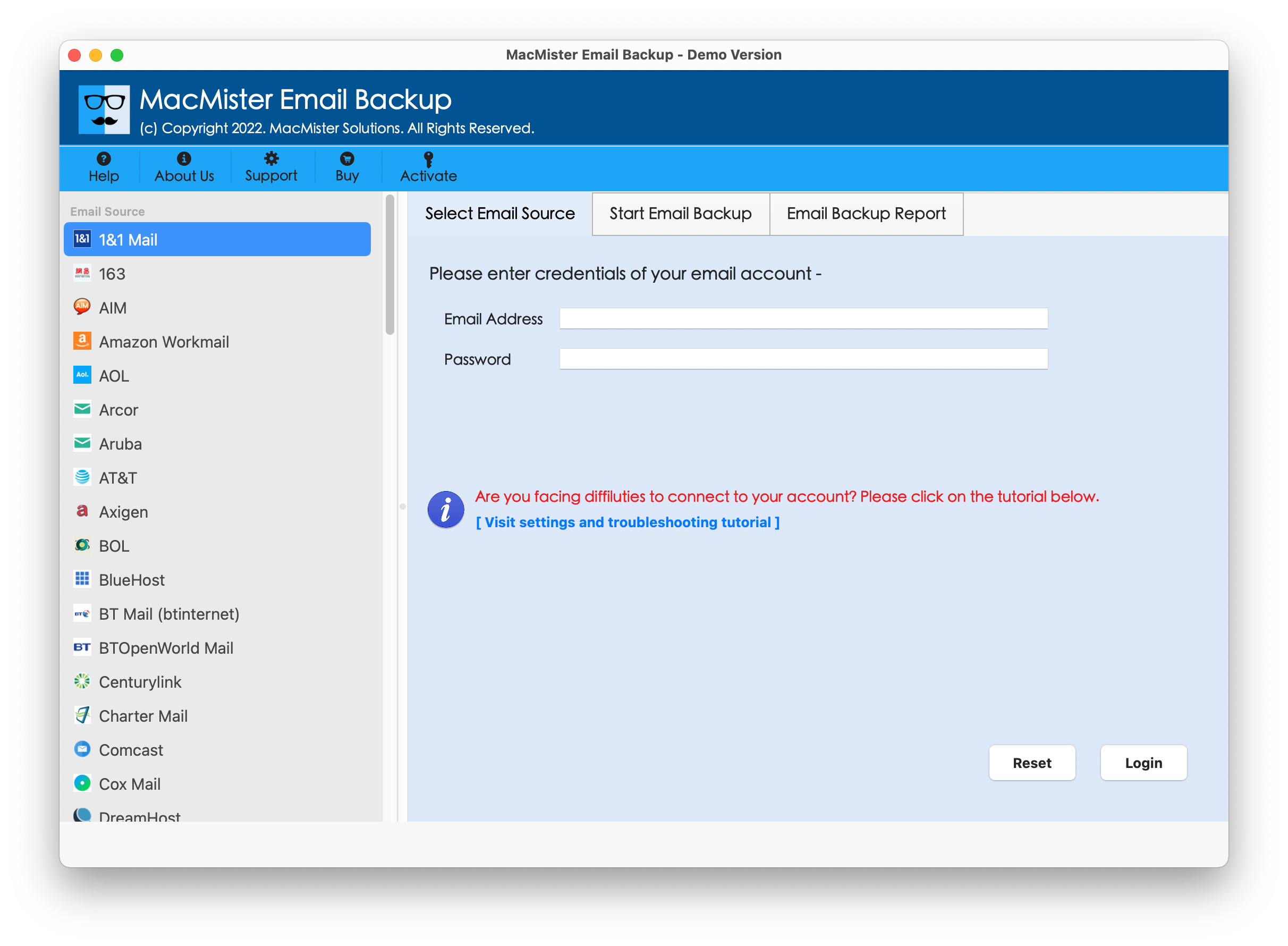
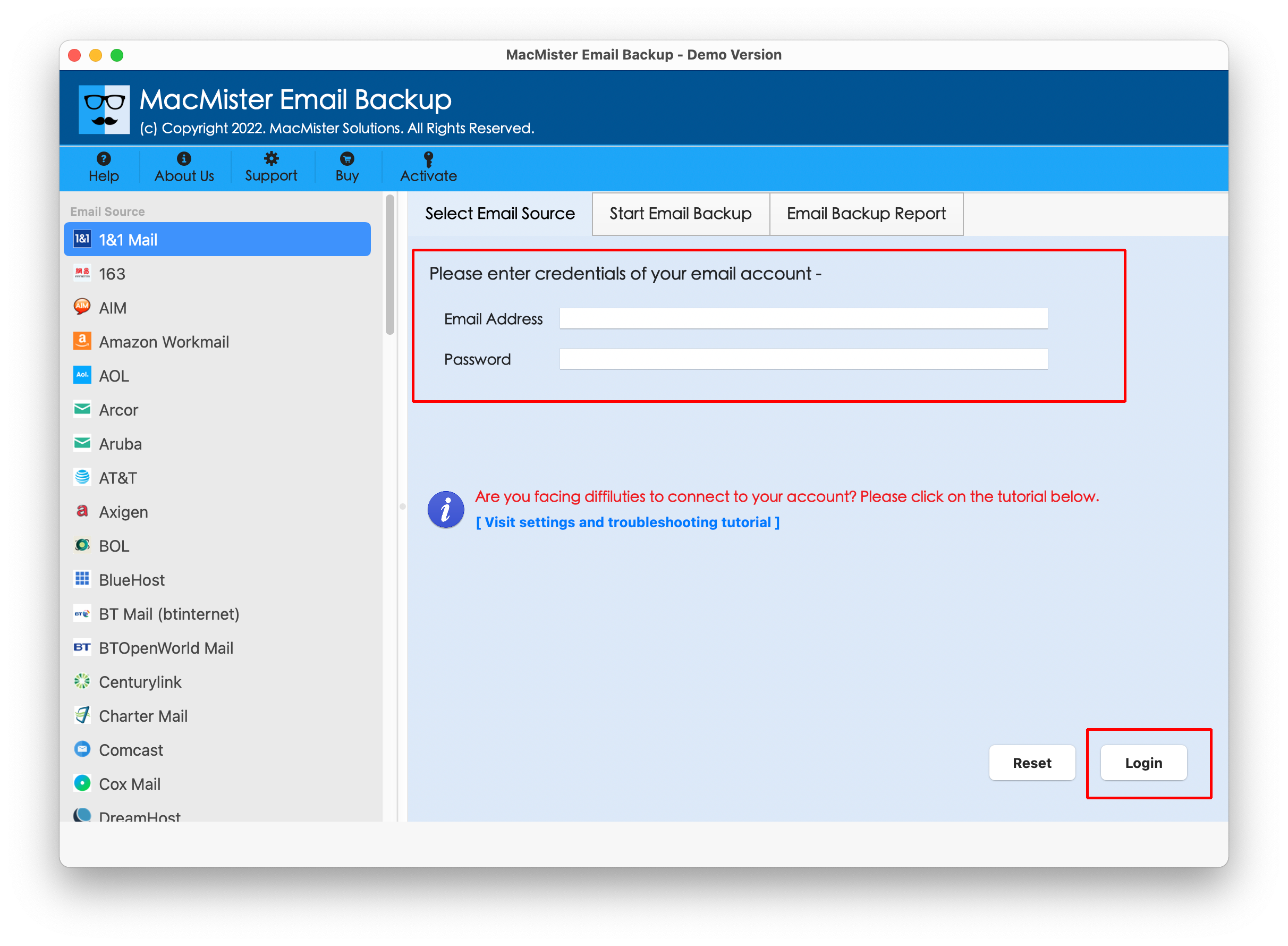
Choose AOL Mail from webmail list. Provide the required AOL account details.
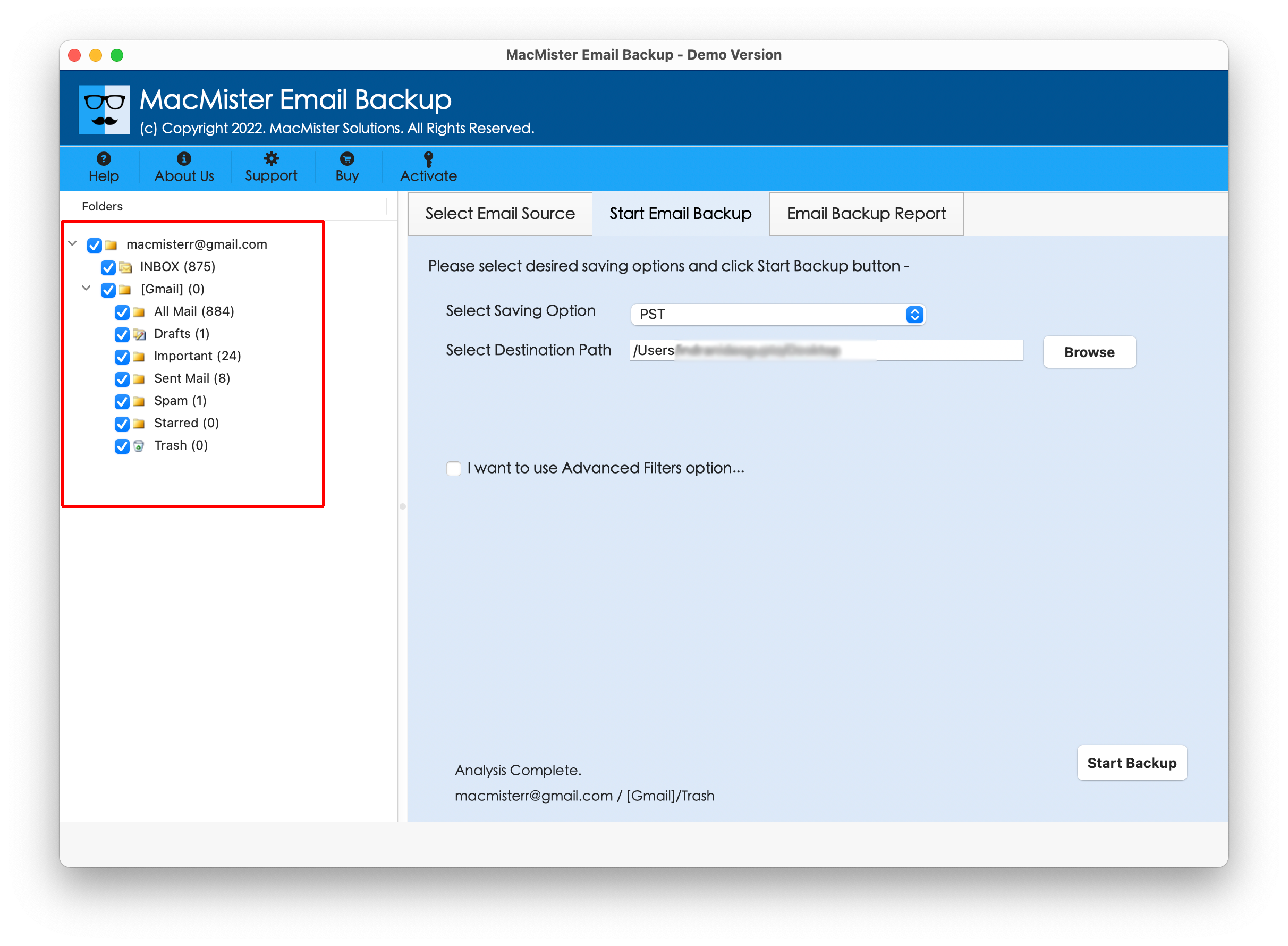
Select the emails or folders you want to transfer.
Choose Gmail as the destination.
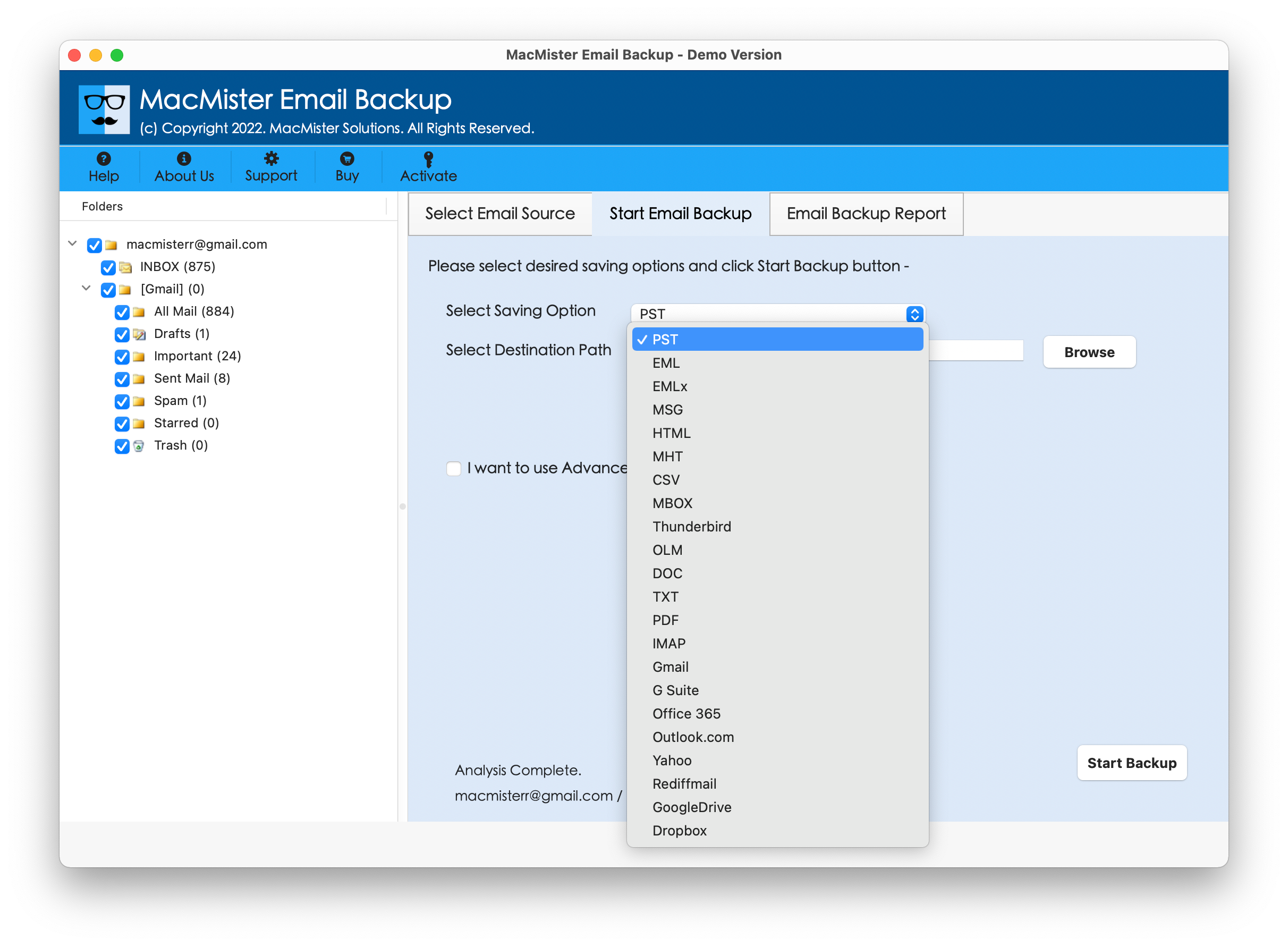
Sign in to the destination Gmail account when prompted. Click on the Start Backup button and Start the transfer.
Manual Method vs. AOL to Gmail Tool
| Feature | Gmail Manual Method | the AOL to Gmail Tool |
| AOL to Gmail transfer | Available depending on Gmail features | Designed specifically for AOL to Gmail |
| Large mailbox handling | May require more troubleshooting | Better suited for bulk transfers |
| Folder selection | Limited depending on method | Provides dedicated transfer options |
| Attachments | Subject to import process | Designed to transfer email data with attachments |
| Technical setup | May require Gmail settings | Guided software-based workflow |
| Gmail third-party feature changes | Affected by Google’s transition | Provides an alternative transfer approach |
| Mac support | Browser-based | Designed for Mac users |
| Bulk email transfer | Can be restrictive | More suitable for bulk migration |
Things to Check After Adding AOL Emails to Gmail
After the transfer, don’t immediately delete the original AOL mailbox. First verify –
- Important emails are present.
- Attachments open correctly.
- Email dates and sender information appear correctly.
- Required folders or categories are available.
- The number of transferred messages is reasonable.
- Gmail has sufficient storage for the imported data.
Keeping the original AOL account temporarily can provide an additional safety layer while you verify the transferred mailbox.
Conclusion
Adding AOL emails to Gmail on Mac can be useful for consolidating older messages and managing email from a familiar Gmail environment. Gmail’s built-in options can work for straightforward requirements, but Google’s ongoing changes to Gmailify and POP-based third-party account access make the traditional approach less suitable for long-term use.
For users handling a large AOL mailbox or looking for a dedicated transfer workflow, the AOL to Gmail backup Tool for Mac offers an alternative approach. Before removing the AOL account, always verify the transferred emails and attachments to ensure that the required mailbox data has been successfully added to Gmail.

