Moving emails from Yahoo Mail to Gmail can be useful when switching to Gmail as your primary email platform, consolidating multiple accounts, or keeping important correspondence in one place. However, transferring an entire Yahoo mailbox is not as straightforward as forwarding individual messages. Yahoo currently does not provide a direct full-mailbox export feature, so Mac users generally need to use an email client or a dedicated email migration tool.
In this guide, we will discuss the available methods to transfer Yahoo emails to Gmail on Mac, their limitations, and a direct approach using Yahoo Mail to Gmail for Mac tool.
Why Transfer Yahoo Emails to Gmail?
There can be several reasons to move Yahoo emails into Gmail –
- Access Yahoo messages from a Gmail account.
- Consolidate emails from multiple providers.
- Move to Gmail for everyday communication.
- Keep important Yahoo emails available in a new mailbox.
- Reduce dependence on an older Yahoo account.
- Preserve emails and attachments before changing email services.
When transferring a large mailbox, it is important to consider attachments, folder organization, timestamps, headers, and other email metadata.
Solution 1: Forward Messages from Yahoo Mail to Gmail
The simplest approach is to forward individual Yahoo emails to your Gmail account. This method works well when you only have a small number of important messages.
Steps to Forward Yahoo Emails
- Log in to your Yahoo Mail account and access your mailbox.
- Open the email you want to transfer.
- Click Forward.
- Enter your Gmail address.
- Add any required message and send it.
However, forwarding emails one by one is impractical for hundreds or thousands of messages. Yahoo itself lists forwarding as an option but does not provide a full mailbox export feature.
Solution 2: Move Yahoo Messages Using a Desktop Email Client
Mac users can also configure Yahoo Mail in a desktop email application such as Apple Mail or Thunderbird and then copy emails into a Gmail account.
Yahoo provides IMAP access for downloading email into third-party applications. Its current documentation notes that large mailboxes may take several days or longer to download completely, and very large folders can also present issues.
General Process
- Install and open an email client on your Mac.
- Add your Yahoo Mail account using the required Yahoo credentials.
- Add your Gmail account to the same application.
- Allow both accounts to synchronize.
- Select the required Yahoo folders or messages.
- Copy or drag the emails into the corresponding Gmail folders.
- Wait for Gmail to synchronize the transferred messages.
- Sign in to Gmail through a browser and verify the transferred emails.
This method can work for selective transfers, but the process depends heavily on mailbox size, synchronization speed, folder structure, and the email application’s configuration.
Solution 3 – Transfer Yahoo Emails to Gmail Using Smart Solution
For users who need to move a large number of Yahoo emails without manually transferring them one by one, MacMister Yahoo Mail Backup Software for Mac provides a more direct approach.
The software supports Yahoo Mail as a source and Gmail as an available saving destination. It is designed to handle mailbox data while retaining emails, attachments, folder hierarchy, sender details, timestamps, and metadata.
Procedure to Move Yahoo Emails into Gmail on Mac
Step 1 – Install Yahoo Mail to Gmail tool for Mac – Download and launch the software on your Mac.
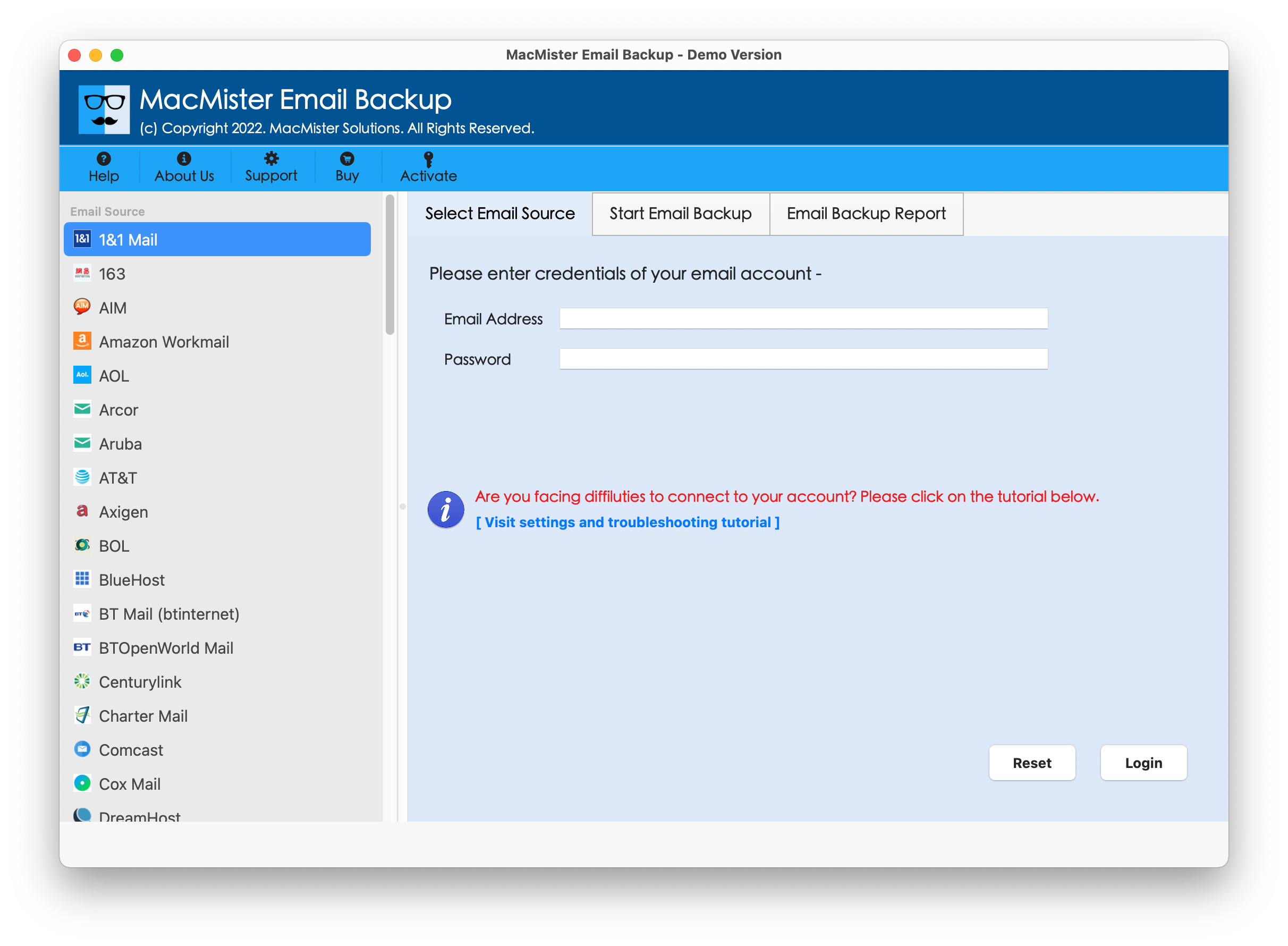
Step 2 – Select Yahoo Mail – Choose Yahoo Mail from the available email sources and enter the required account details.
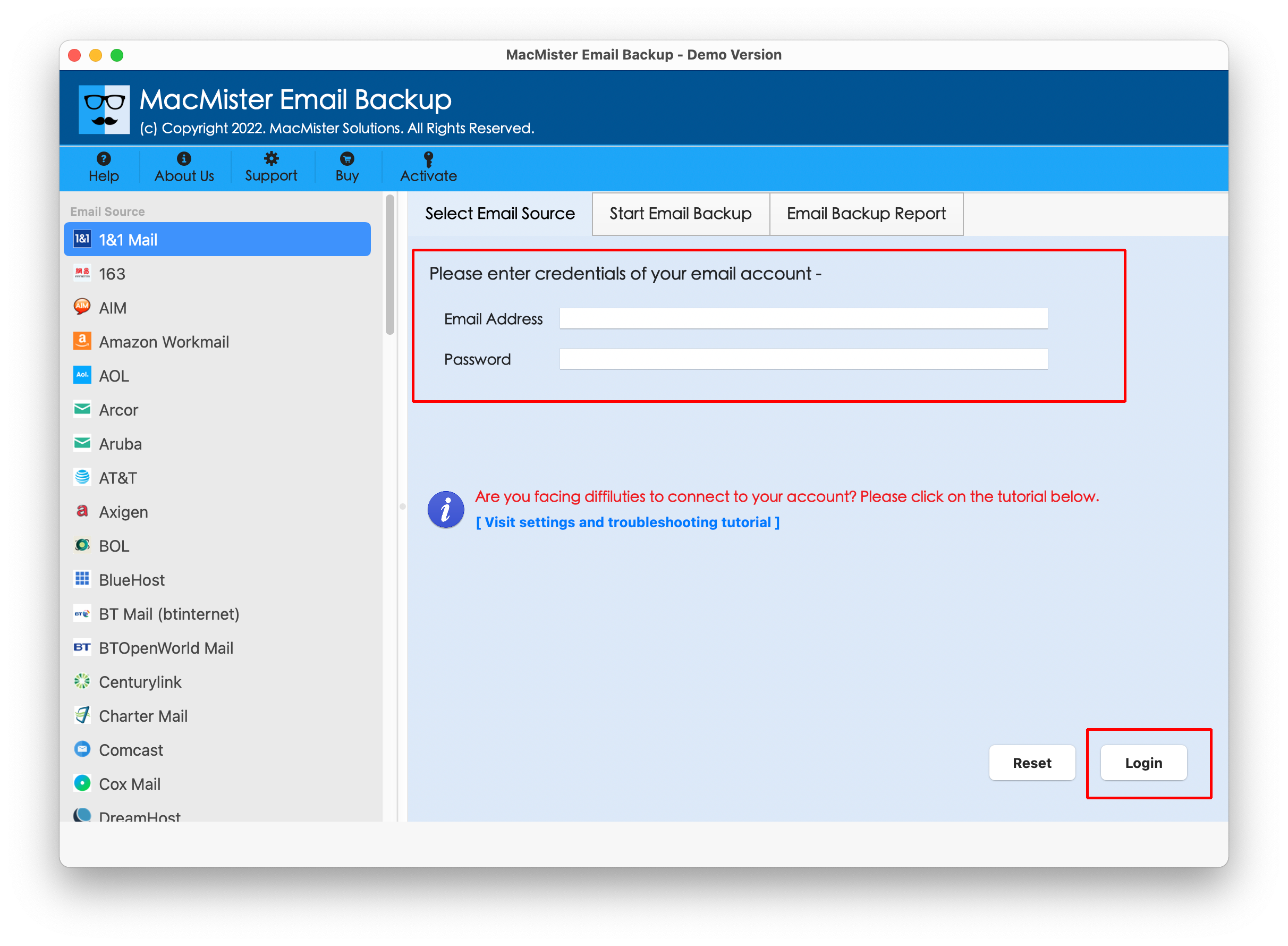
Step 3 – Connect the Yahoo Account
Complete the authentication process and allow the software to load the available Yahoo folders. Choose the folders or emails you want to transfer. Filters can also be useful when you only need specific mailbox data.
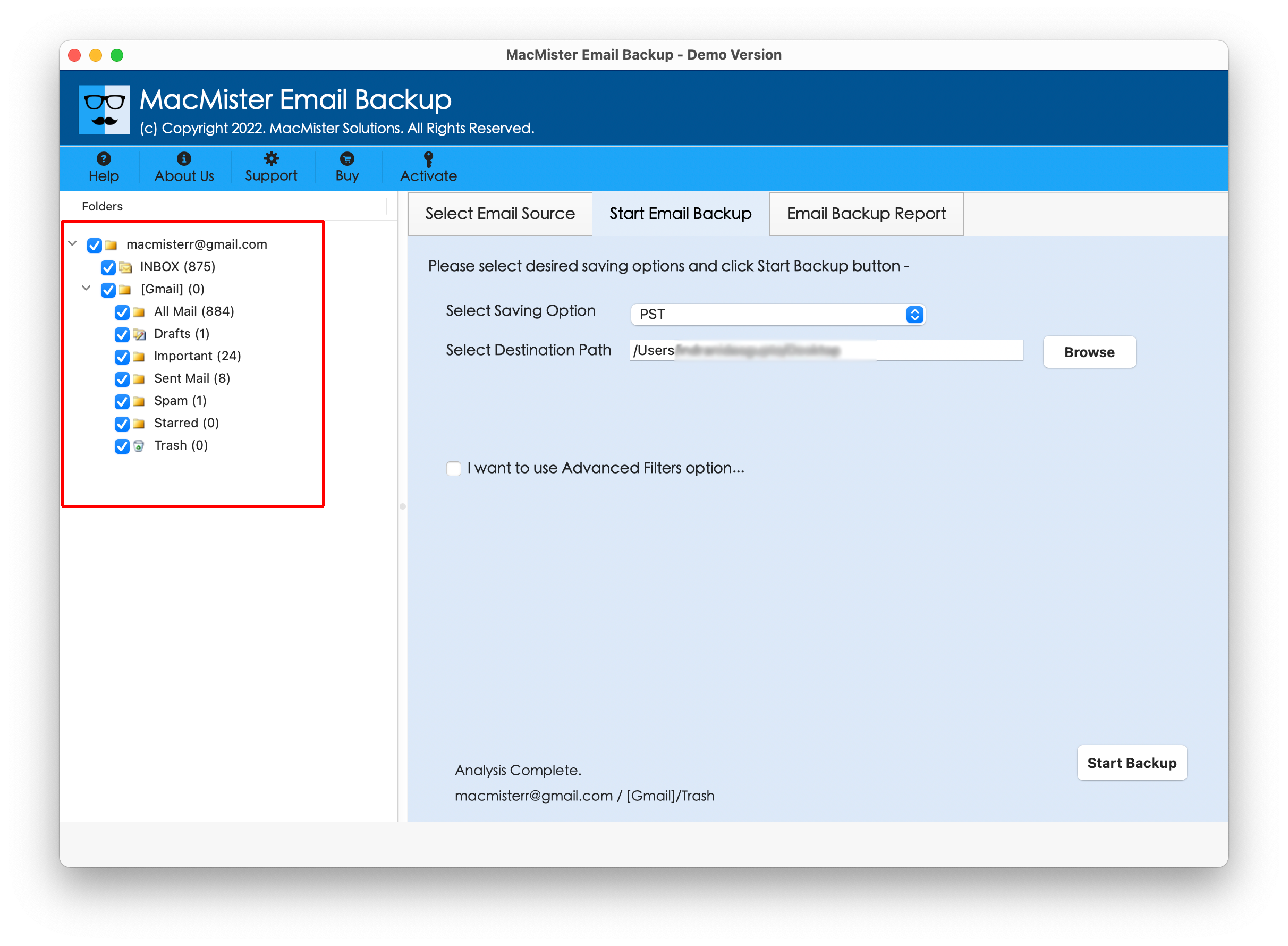
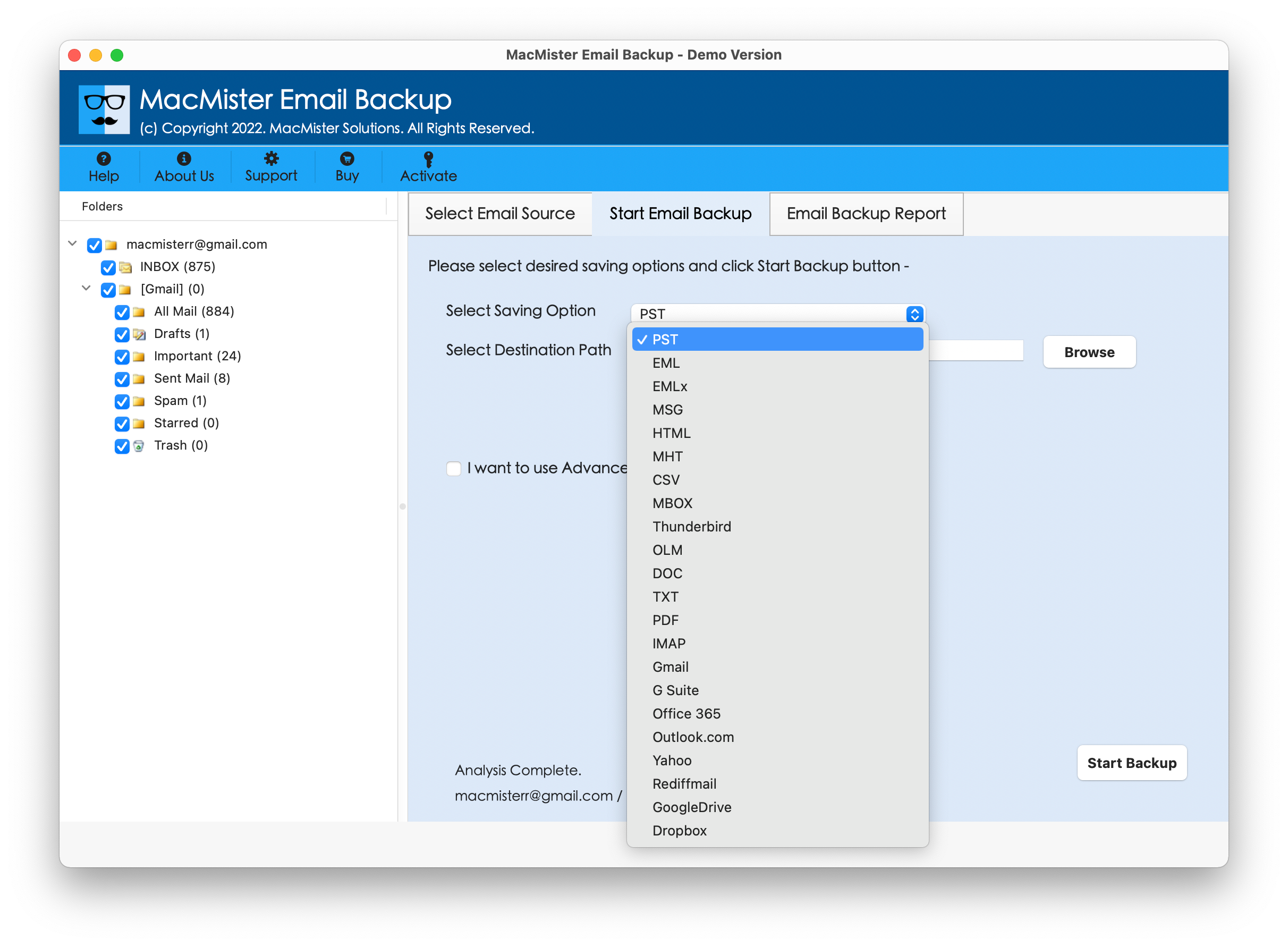
Step 4 – Choose Gmail as the Saving Option
Select Gmail from the available saving options
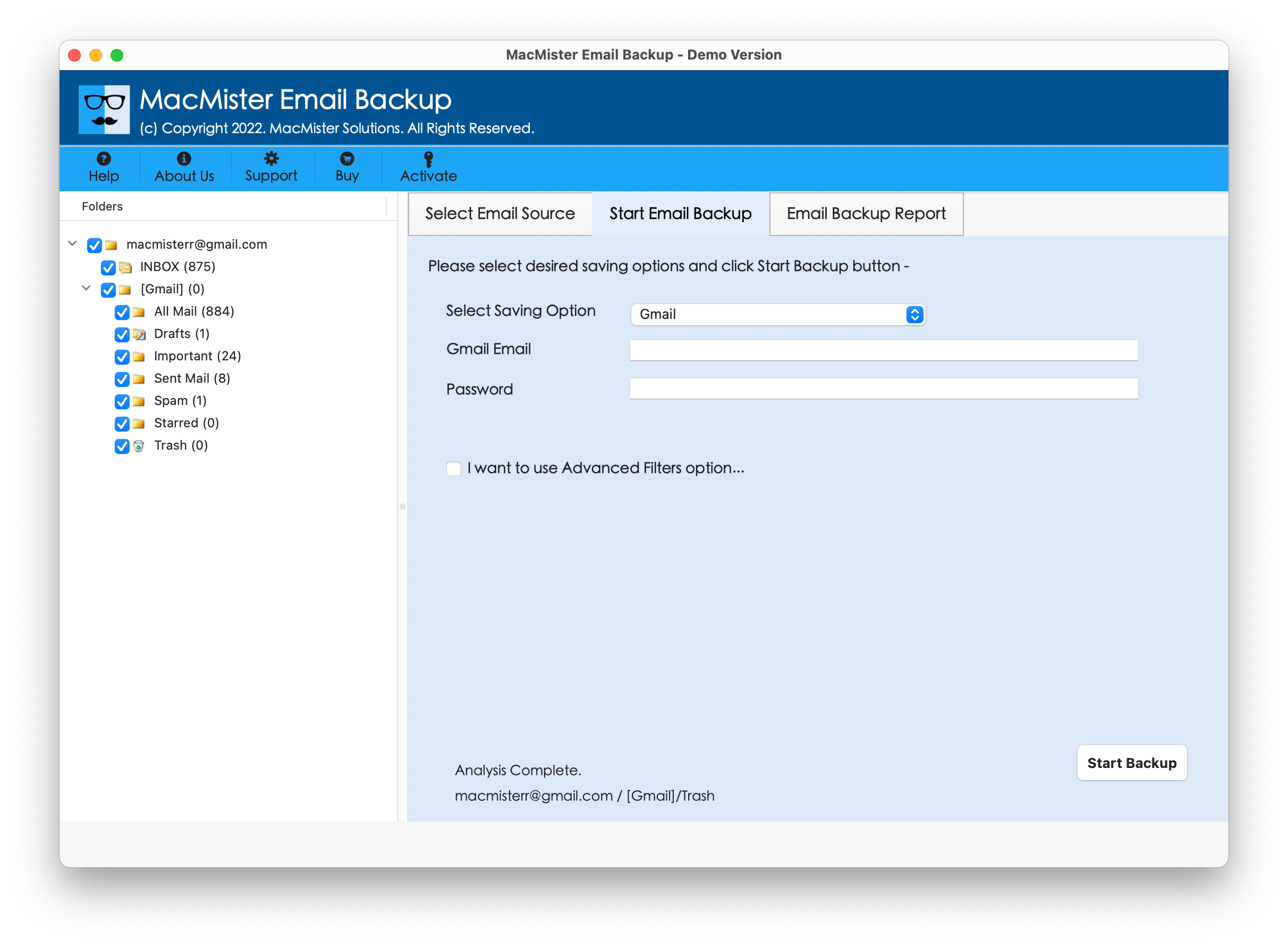
Step 5 – Fill Gmail Login Details
Now provide the required Gmail login details.
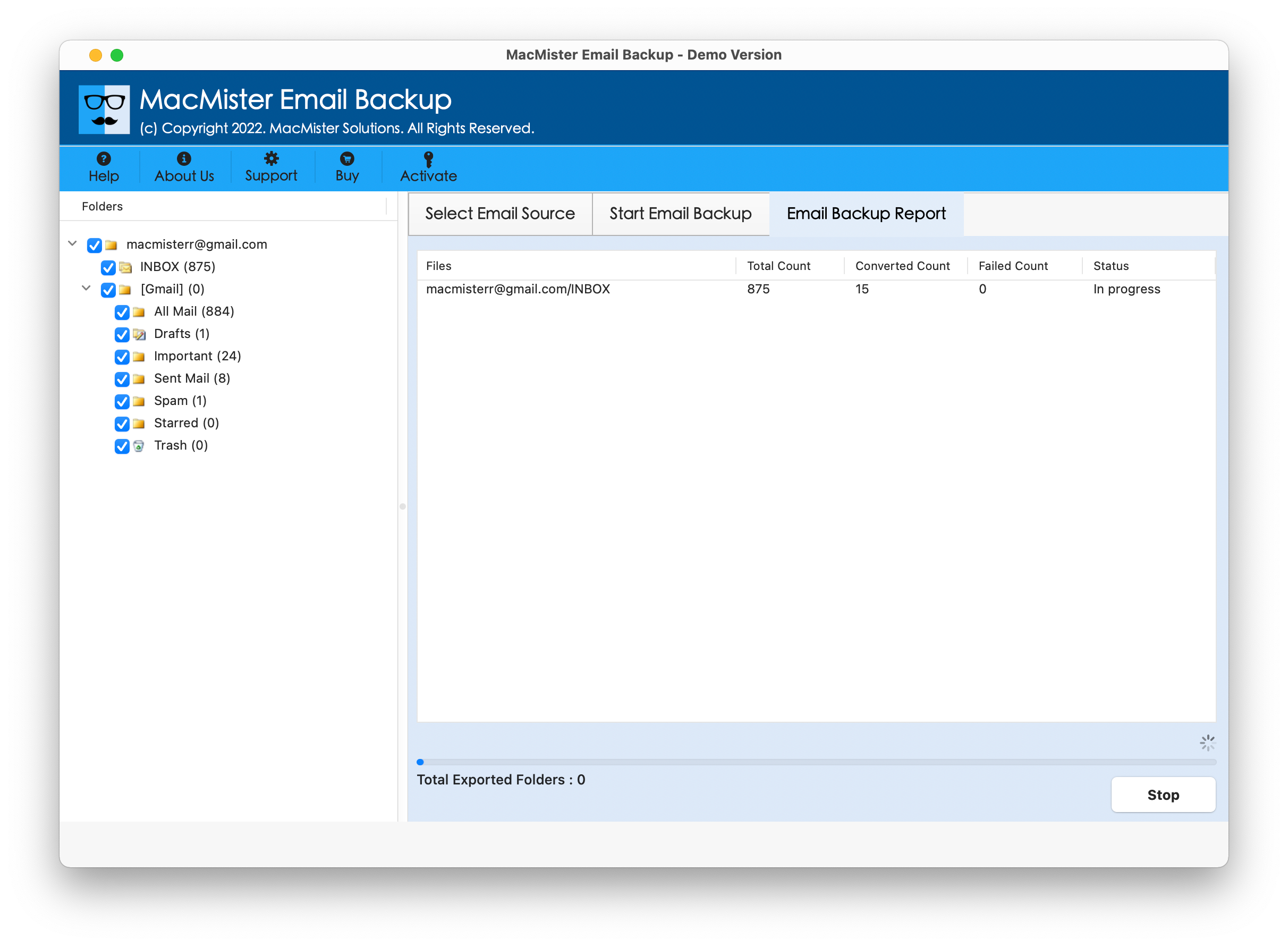
Step 6 – Start the Transfer
Click the Start backup option to begin transferring the selected Yahoo emails to Gmail.
It supports multiple email services and provides filtering and mailbox-selection options, making it suitable for users who want more control over the transfer process.
Yahoo to Gmail Transfer Methods Compared
| Feature | Forward Emails | Email Client | Yahoo Mail to Gmail Tool |
| Bulk transfer | No | Yes | Yes |
| Transfer multiple folders | No | Yes | Yes |
| Attachments | Yes, individually | Yes | Yes |
| Suitable for large mailboxes | No | Limited | Yes |
| Requires manual handling | High | Moderate | Low |
| Gmail as destination | Yes | Yes | Yes |
| Filtering options | No | Limited | Yes |
| Folder organization | Limited | Depends on client | Maintained |
| Mac support | Browser-based | Yes | Yes |
| Best suited for | Few emails | Selective transfers | Bulk mailbox transfer |
Important Preparations Before the Email Transfer
Before starting the transfer, consider the following –
- Make sure the Gmail account has sufficient storage.
- Verify your Yahoo account credentials.
- Check that important folders are synchronized correctly.
- Keep the original Yahoo mailbox intact until the transfer is verified.
- Check attachments after completing the transfer.
- For a large mailbox, avoid relying on a browser-based manual process.
If using an email client, allow enough time for Yahoo folders to synchronize completely.
Conclusion
Transferring Yahoo emails to Gmail Converter for Mac can be done in several ways. Forwarding is convenient for a few individual emails, while an email client can work for selective or moderate transfers. However, manually copying a large Yahoo mailbox can become time-consuming and may involve synchronization or configuration issues.
For users looking for a more direct way to transfer Yahoo mailbox data to Gmail, The Yahoo Mail to Gmail tool for Mac provides perfect solution with support for Yahoo Mail, Gmail, folder selection, filtering, attachments, and mailbox data preservation.

