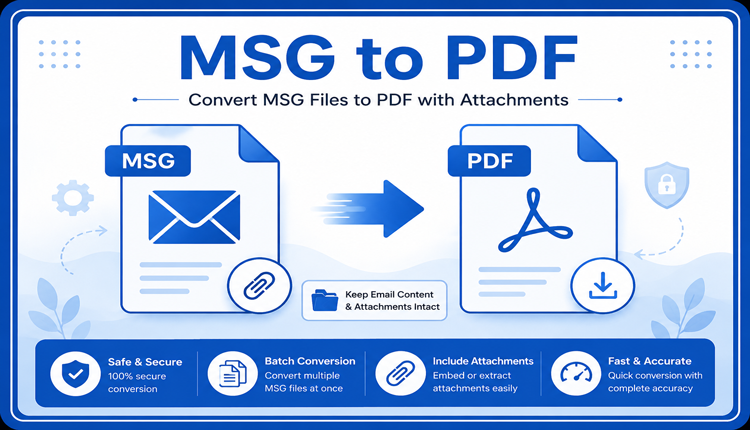
MSG is a proprietary email file format primarily associated with Microsoft Outlook. It can store the email body along with metadata such as sender, recipient, subject, date, formatting, and attachments. Although MSG is useful for preserving individual Outlook messages, it can become inconvenient when emails need to be shared with users who do not have Outlook or archived for long-term access.
PDF is often preferred for email documentation because it is portable, easy to share, and supported across operating systems. However, converting MSG files to PDF on Mac can sometimes result in technical errors, missing attachments, formatting problems, or incomplete email content.
This guide explains common MSG files to PDF conversion errors and how to resolve them, including a dedicated method for Mac users.
Why Does MSG files to PDF Conversion Fail on Mac?
MSG files are not simple text documents. They contain structured MAPI properties that store different components of an Outlook message. When a conversion application cannot correctly interpret these properties, the output PDF may be incomplete or the conversion may fail altogether. Common problems include –
- MSG file not opening
- PDF conversion failing
- Attachments missing from output
- Email formatting changing
- Garbled or unreadable characters
- Batch conversion stopping unexpectedly
- Unsupported or corrupted MSG files
- Permission-related errors on macOS
- Conversion producing blank PDF files
- Understanding the source of the problem is important before selecting a solution.
Common Technical Errors When Converting MSG Files to PDF
1. “Unable to Open MSG File” Error
One of the first problems users may encounter is an MSG file that cannot be opened or loaded. This can happen when –
- The MSG file is corrupted.
- The file was incompletely downloaded.
- The file extension has been changed manually.
- The MSG contains unsupported MAPI properties.
- The application does not properly interpret the MSG structure.
- If other MSG files open normally while one particular file fails, the problem is more likely related to that specific file.
Fix: Test several MSG files. If only one file fails, verify the source file and try obtaining a fresh copy.
2. “MSG Data to PDF Conversion Failed”
A conversion failure can occur after the MSG file has already been loaded successfully. This generally indicates that the application could read the source file but encountered a problem while generating the PDF. Possible causes include –
- Invalid email properties
- Unsupported embedded objects
- Large attachments
- Insufficient disk space
- Output-folder permissions
- Application compatibility issues
Fix: First try converting a single MSG file. If that works, process the remaining files in smaller batches. Also verify that the destination folder is writable and has sufficient storage.
3. Attachments Are Missing from the PDF
This is one of the most important issues when converting business emails.
An MSG file can contain attachments as separate embedded objects. A converter that processes only the email body may generate a PDF successfully but fail to preserve the associated attachment information. For example, an email may contain –
- Invoice.pdf
- Report.xlsx
- Contract.docx
- Image.jpg
but the resulting PDF may show only the email text.
Fix: Use a converter that specifically supports MSG attachment processing. Before converting an entire archive, test a message containing different attachment types and verify the output.
4. Blank PDF After MSG Conversion
Sometimes the conversion appears successful, but the generated PDF contains little or no visible email content. This may happen because the MSG contains unusual formatting, unsupported HTML elements, embedded content, or damaged message properties.
Fix: Try another MSG file to determine whether the issue affects all files or only one message. If multiple valid MSG files produce blank PDFs, check the conversion application’s compatibility and update it to the latest version.
Quick Manual Method to Save MSG files to PDF
If only one or two MSG files need to be converted and Outlook is already installed on the Mac, a basic manual approach may be sufficient. Open the MSG email in a compatible application, use the Print option, select the macOS PDF option, and save the email as a PDF. However, this approach becomes inconvenient when the email contains attachments or when hundreds of MSG files need to be processed. It also requires checking each message individually.
For larger collections, an automated conversion approach is generally more practical.
Advanced Method to Save MSG Files to PDF without Outlook on Mac
For users who regularly handle MSG archives, MacMister MSG to PDF Converter for Mac provides a dedicated way to process MSG files on macOS. The software is a dedicated tool to convert Outlook MSG files into PDF format on Mac.
It supports bulk conversion while preserving important email details, formatting, and attachments. Its simple interface makes it suitable for creating accessible PDF archives from MSG emails without relying on manual conversion.
Why Use a Dedicated MSG Files to PDF Tool?
A dedicated converter is useful when the conversion requirement goes beyond simply printing an individual email. It can help with –
- Bulk MSG processing
- Email attachment handling
- Folder-based selection
- Large MSG archives
- Mac-based conversion
- Reducing repetitive manual work
- Creating PDF-based email archives
For organizations working with large Outlook email collections, automation can also make the conversion process easier to manage.
Conclusion
Converting MSG files to PDF on Mac can become complicated when technical issues such as corrupted MSG files, missing attachments, blank PDFs, formatting changes, Unicode errors, or macOS permissions are involved. A simple print-to-PDF method may work for occasional emails, but it is not ideal for large archives or messages containing important attachments.
For repeated or bulk conversions, MacMister MSG Converter for Mac provides a more structured approach to converting MSG files into PDF while handling email data and attachments. Testing a small set of files first and verifying the resulting PDFs is recommended before processing a complete email archive.