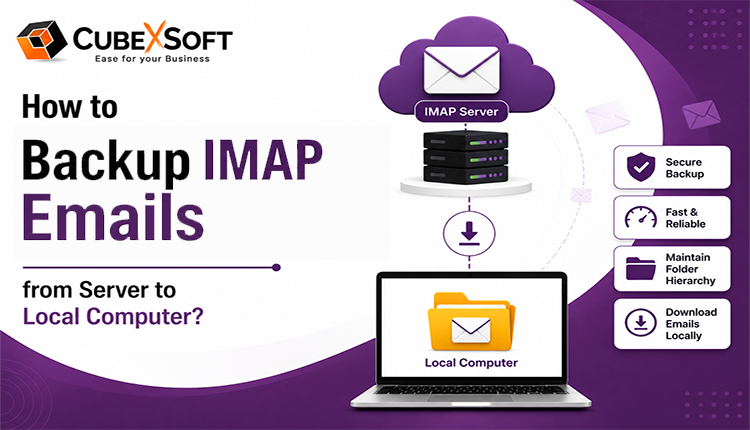
Summary– This blog explains How to Backup IMAP Emails from Server to Local Computer in a simple and secure manner. In this post, we will discuss both manual methods as well as an automated solution recommended by experts to safely save emails from an IMAP server without any hassle.
Most email services use SMTP (Simple Mail Transfer Protocol) to send emails, while IMAP and POP3 are used to access incoming messages. Among these, IMAP is a widely used protocol that keeps emails stored on the server and synchronizes them across multiple devices. But many users still ask, How to Backup IMAP Emails from Server to Local Computer and save their mailbox data safely.
IMAP allows users to manage emails directly from the mail server and synchronize mailbox data across multiple devices. However, depending only on the server can be risky due to accidental deletion, account issues, or server failures.
There are several reasons why users want to download emails from IMAP server and keep a local copy of their mailbox. A local backup helps protect important emails, provides offline access, and makes email migration easier whenever required.
Users can either use email clients for manual backup or choose an automated solution for a quick process.
In this comprehensive article, we’ll discuss both approaches and explain the easiest way to backup IMAP emails locally using a reliable and expert CubexSoft IMAP Backup Tool.
Method 1: Manually Backup IMAP Emails Using Outlook
If you want to save IMAP emails locally without using any third-party software, you can use an email client like Microsoft Outlook. This manual method involves configuring your IMAP account in Outlook and then exporting mailbox data to your computer.
The process is divided into two simple steps:
Step 1: Configure IMAP Account in Outlook
- Download and install Microsoft Outlook on your system.
- Add your IMAP email account by entering your login credentials.
- Complete the account verification process.
- Wait for Outlook to synchronize and download emails from the IMAP server.
Step 2: Export IMAP Emails to Local Storage
After configuring the account, follow these steps to create a local copy:
- Open Outlook and go to the File menu.
- Select Import/Export from the available options.
- Choose the export option and save your mailbox data on your computer.
This method helps you backup IMAP emails to hard drive using Outlook. However, it may not be suitable for users who need to process large mailboxes or multiple accounts.
Restrictions of Using Free Manual IMAP Backup Solution
- Possibility of incomplete email backup.
- No option for selective backup with advanced filters.
- Requires technical knowledge for IMAP configuration.
- Usually handles one mailbox at a time.
- Large mailbox backup can take significant time.
Due to these limitations, many users prefer an automated CubexSoft Email Backup Software that can securely export mailbox data with advanced features and less effort.
Method 2: Automated Solution to Backup IMAP Emails from Server to Local PC
For users who want a secure and simple approach to create an IMAP backup, using a professional solution is a better choice. The CubexSoft IMAP Migration Tool allows users to securely download emails from IMAP server, create a local copy of their mailbox, and protect important email data from unexpected loss.
The tool connects with the IMAP account, loads mailbox folders, and allows users to select the required data for backup. It also provides options such as folder selection, export formats, and advanced filters to make the backup process more flexible and convenient.
📤 Supported Output Options
Export IMAP emails into multiple file formats and email platforms according to your requirements.
📂 Export File Formats
📧 Supported Email Platforms
📎 Additional Options
With this solution, users can easily save IMAP emails locally and manage large mailbox data without following complex manual steps. The next section explains the step-by-step working process of the IMAP Backup Solution.
Steps to Backup IMAP Emails Using IMAP Backup Software
- Download and install the IMAP Backup for Mac and Windows Tool on your system.
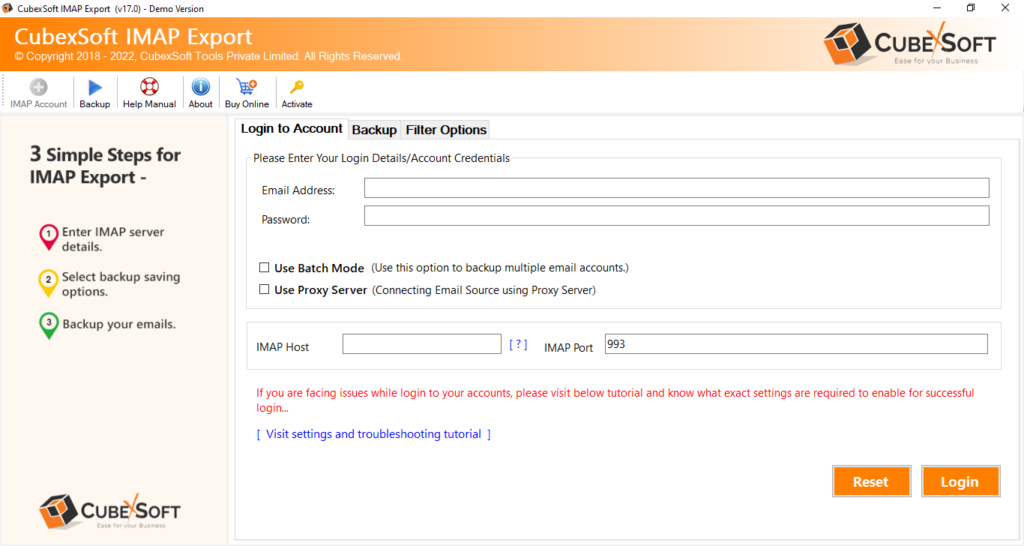
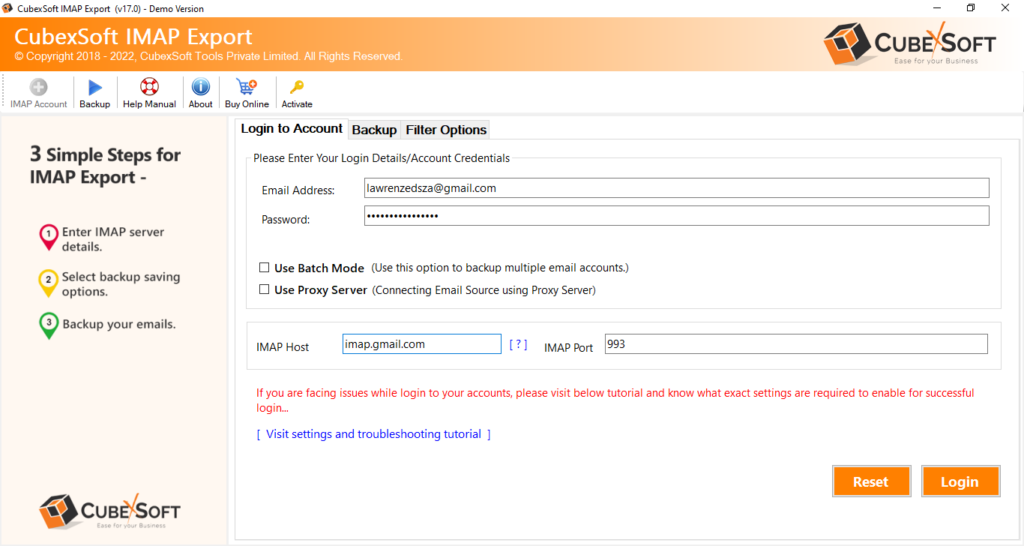
- Launch the software and enter your IMAP account login details to connect your mailbox.
- Once connected, the software loads all mailbox folders. Select the required folders that you want to back up.
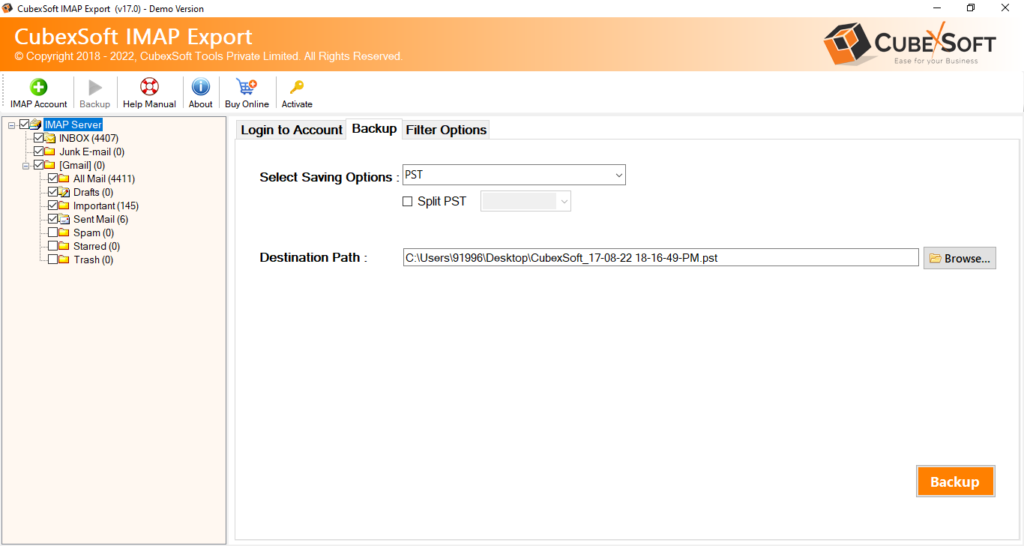
- Choose the desired export format according to your requirement.
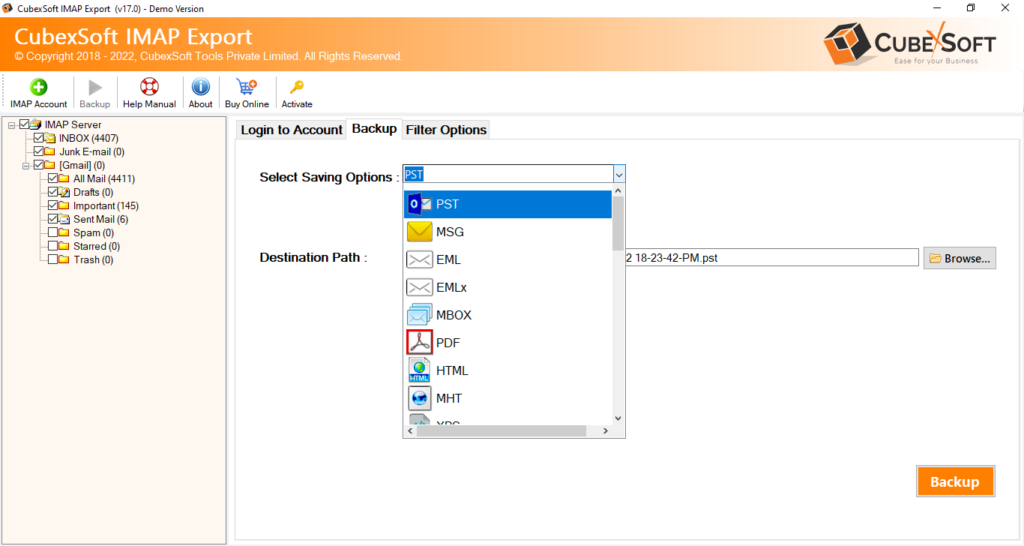
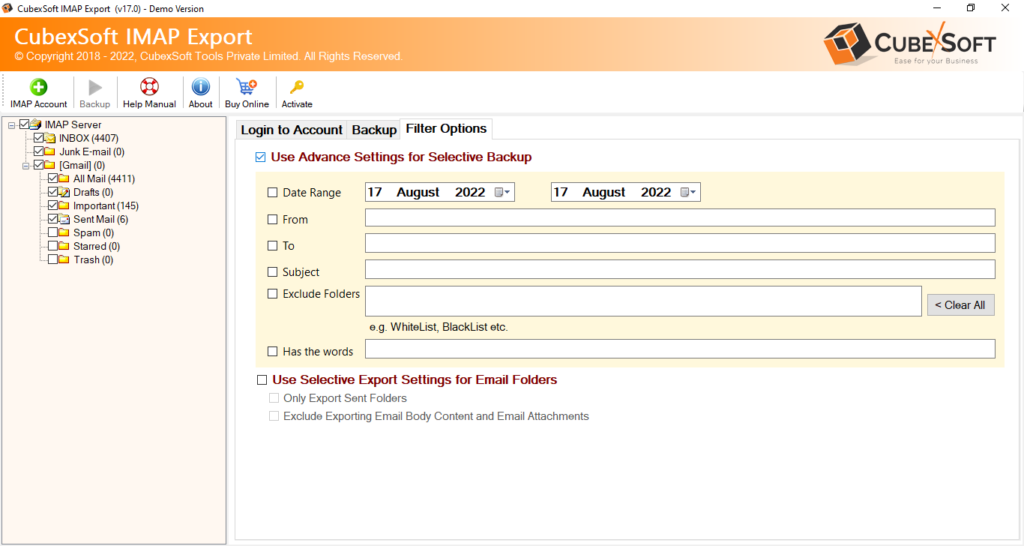
- Apply advanced settings and filters such as date range, to, from, subject, or exclude folder for selective backup.
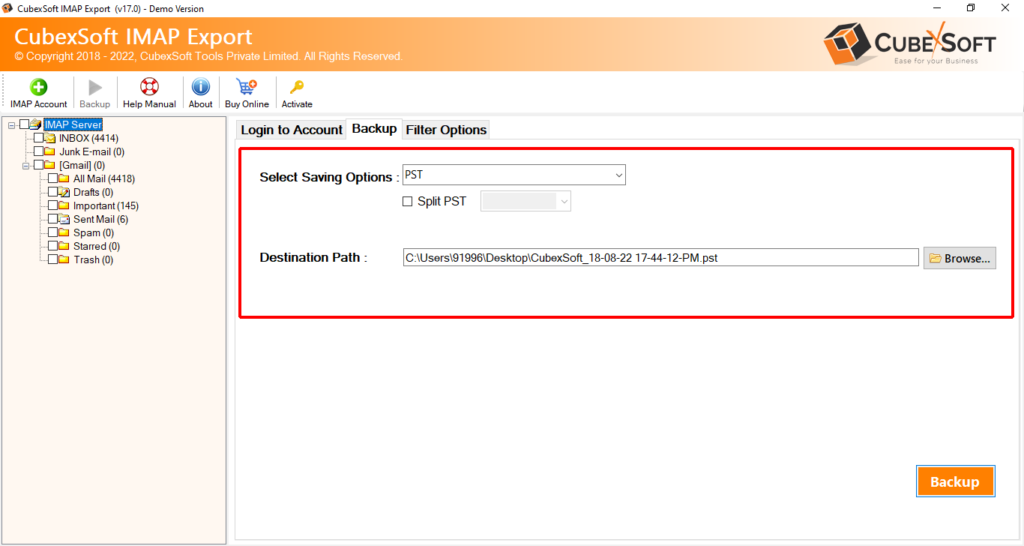
- Select the destination location where you want to save the exported IMAP emails.
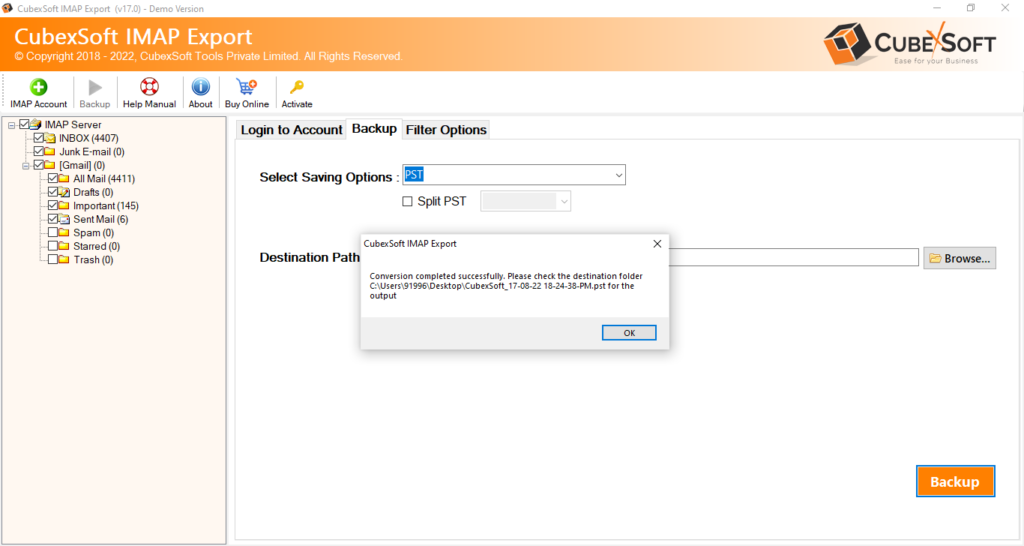
- Hit the Backup button to start the process of saving emails locally.
Frequently Asked Questions (FAQs)
Q1. How to backup IMAP emails locally?
A: You can backup IMAP emails locally by using an IMAP backup tool that connects with your mailbox and exports emails to your computer in the required format.
Q2. How to Backup IMAP Emails from Server to Local Computer?
A: You can backup IMAP emails from the server by configuring your account with an email client or using professional backup software to export mailbox data securely.
Q3. What is the best software for backing up IMAP emails?
A: The best software for backing up IMAP emails should provide secure login, multiple export options, selective backup, and support for large mailbox data.
Q4. Can I download emails from IMAP server to my hard drive?
A: Yes, you can download emails from an IMAP server to your hard drive using an IMAP backup tool and create a local copy of your mailbox.
Q5. Can I export IMAP emails to PST format?
A: Yes, the tool allow users to export IMAP emails to PST and other formats for easy access and migration.
Final Thoughts
Backing up IMAP emails is an effective way to protect important mailbox data from accidental deletion, server issues, and unexpected data loss. Although manual techniques can help with basic requirements, they may involve limitations when handling large mailboxes or multiple accounts.
For a fast backup process, users can use the IMAP Export Tool to export and save IMAP emails locally while maintaining the original mailbox structure. This makes it easier to manage email data, access important messages, and keep a secure backup whenever required.

