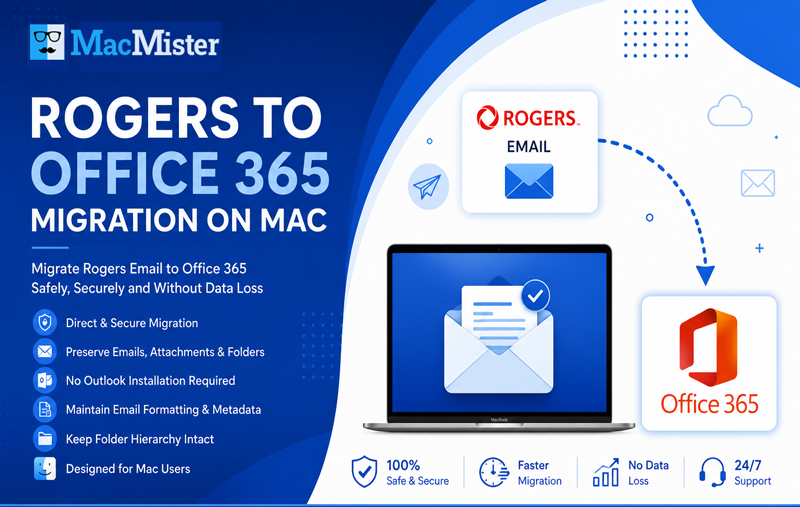
Rogers email users may want to transfer their existing messages to Gmail for better email management, convenient access, and long-term storage. Gmail offers a web-based mailbox that users can access from different devices, making it a useful option for managing personal and professional correspondence. However, moving emails from a Rogers account to Gmail requires a suitable migration method that can handle messages, attachments, and other important email information.
Mac users can try a manual approach through a compatible email client or use a dedicated migration tool for a more organized process. In this guide, we will discuss Rogers email, Gmail, the benefits of transferring emails, the manual method, its limitations, and an alternative using Rogers to Gmail Tool for Mac.
Overview of Rogers Email
Rogers email is an email service provided to Rogers customers through Rogers Yahoo Mail. Users can access their @rogers.com email accounts to manage incoming and outgoing messages, attachments, and saved correspondence. The service relies on Yahoo Mail infrastructure for email access and account management.
Users may want to move their existing messages to another email service when changing their email management preferences or consolidating multiple accounts. However, account authentication and email-client compatibility should be checked before beginning the transfer. Rogers provides support information for configuring and troubleshooting Rogers Yahoo Mail on supported devices.
Overview of Gmail
Gmail is an email service from Google that allows users to send, receive, organize, and search messages through a web browser or compatible email applications. It offers features such as labels, filters, spam protection, and integration with other Google services.
For users moving from Rogers, Gmail can provide a centralized location for managing email correspondence. Transferring existing messages allows users to keep older conversations accessible alongside new emails. A suitable migration method should preserve message content and attachments while organizing the transferred data in a way that makes it easy to find later.
Why Transfer Rogers Emails to Gmail?
- Centralized email management – Keep important messages in one primary email account.
- Convenient accessibility – Access Gmail from different devices using an internet connection.
- Long-term email storage – Retain important conversations for future reference.
- Better organization – Use Gmail labels and search features to manage transferred messages.
- Account consolidation – Reduce the need to switch between multiple email accounts.
- Attachment access – Keep documents, images, and other files associated with important correspondence.
- Simplified communication – Manage older Rogers messages and new Gmail conversations in a single mailbox.
Before starting the migration, users should verify that the Rogers account is accessible and that the chosen method supports the required email folders and attachments.
Manual Method to Transfer Rogers Emails to Gmail on Mac
One possible manual approach is to add both accounts to a compatible email client and copy messages from Rogers to Gmail. The exact steps depend on the email application, account permissions, and current authentication requirements.
- Open a compatible email client on your Mac.
- Add your Rogers Yahoo Mail account and complete the supported sign-in process.
- Add your Gmail account using Google’s recommended sign-in option.
- Wait for the available Rogers messages and folders to synchronize.
- Open the Rogers mailbox and select the emails you want to transfer.
- Copy or drag the selected messages into the appropriate folder or label under Gmail.
- Allow the messages to synchronize with Gmail’s servers.
- Sign in to Gmail through a web browser and verify the transferred emails and attachments.
Important – This method requires successful access to both accounts and an email client that supports the required operations. Rogers and Yahoo authentication requirements can change, and some users may encounter account-setup or synchronization issues. If the accounts cannot be connected, check the latest official support instructions before proceeding.
Risks and Limitations of the Manual Method
- Authentication problems – Rogers Yahoo Mail may reject an email client’s sign-in attempt or require a supported authentication method.
- Time-consuming process – Copying a large number of messages and waiting for synchronization can take considerable time.
- Incomplete migration – Some folders or messages may not finish synchronizing before the transfer begins.
- Attachment verification – Users should confirm that important attachments remain available after copying the emails.
- Folder organization – The destination structure may differ from the original Rogers mailbox, requiring additional organization in Gmail.
- Duplicate messages – Repeating a transfer without checking the destination can create duplicate emails.
- Synchronization delays – Large transfers may take time to appear in Gmail, depending on mailbox size and connection speed.
- Limited selection options – The email client may not provide the exact date, sender, recipient, or subject filters needed for selective migration.
To reduce these risks, transfer a small group of emails first, verify the results, and keep the original Rogers messages intact until the migration has been checked.
Rogers to Gmail Migration Solution for Mac
MacMister Rogers to Gmail Tool for Mac offers an alternative to manual email copying, helping users simplify the migration process, provided the current version supports Rogers account access and direct Gmail transfer. MacMister’s Rogers Email Backup Tool for Mac supports smooth migration step by step simple working process and provides accurate result after migration. Its email-handling features are designed to preserve important information, including email properties such as sender, recipient, subject, date, and message content.
Another useful capability is its filter options, which help users to save Rogers emails to Gmail with date ranges, sender or recipient details, and subject criteria. The software also offers multiple output formats & webmail apps, including MBOX, EML, PST, PDF, HTML, Gmail, Office 365, IMAP Server, Yahoo Mail, Outlook.com and other supported options. For compatibility, the tool works on all Mac versions – Monterey, Big Sur, Catalina, Mojave, High Sierra, and earlier editions.
Conclusion
Transferring Rogers emails to Gmail on Mac can help users centralize their correspondence, organize older messages, and maintain access to important email conversations. The manual method involves adding both accounts to a compatible email client and copying messages into Gmail, but authentication issues, synchronization delays, and attachment verification can make the process challenging.
While the Rogers to Gmial for Mac tool offers batch processing, filtering options, multiple export formats, and support for retaining email properties and attachments. Users who need direct Rogers-to-Gmail migration can choose the direct migration solution option that supports the exact workflow for the migration.