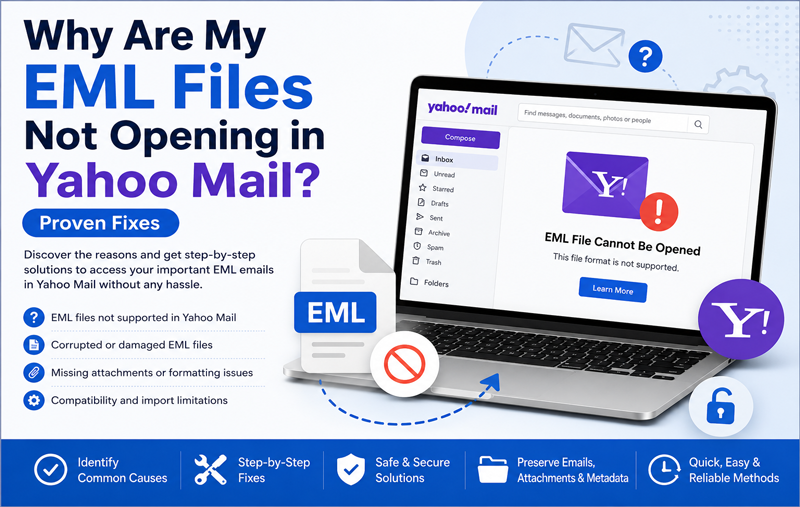
EML files are commonly used to store individual email messages along with their content, headers, formatting, and attachments. Users may have EML files saved on their Mac after exporting emails from an email client, receiving them as backups, or migrating data from another platform. When Yahoo Mail becomes the preferred platform for accessing these messages, the next challenge is finding a practical way to add EML files to a Yahoo Mail account.
Unlike regular email attachments, EML files contain complete email messages and cannot simply be dragged into a Yahoo Mail inbox as individual messages. Users therefore need an appropriate method to transfer the stored EML data into their Yahoo Mail account. This guide explains the available approach and EML to Yahoo Mail for Mac tool as a direct option for transferring EML files to Yahoo Mail.
What Are EML Files?
EML is an email file format used by several desktop email applications and mail utilities. Each EML file generally represents a single email and can contain the sender and recipient details, subject, message body, date, headers, formatting, and attachments.
Since EML files are stored individually, a folder containing thousands of messages can become difficult to manage manually. Converting or transferring them in bulk can therefore be useful when moving archived email data to a webmail account.
What Is Yahoo Mail?
Yahoo Mail is a web-based email service that allows users to send, receive, organize, and access emails through a browser or supported applications. Since messages are stored within the Yahoo account, users can access them from different devices without relying solely on locally stored files.
For users who already have important emails saved as EML files, transferring those messages to Yahoo Mail can provide a centralized location for accessing and managing the data.
Why Add EML Files to Yahoo Mail?
- Centralized email access – Keep locally stored messages available through the Yahoo Mail account.
- Email migration – Transfer messages from an older email environment to Yahoo Mail.
- Data organization – Manage previously archived EML messages alongside other mailbox data.
- Attachment preservation – Retain attachments associated with important email messages.
- Reduced dependency on local storage – Access transferred emails through an online mailbox instead of relying entirely on EML files stored on the Mac.
- Bulk migration – Users with a large collection of EML files may need a method that can process multiple messages together.
Manual Method to Add EML Files to Yahoo Mail
Yahoo Mail does not provide a simple built-in option to import a folder of EML files directly into an existing mailbox. A workaround may involve using a compatible desktop email client as an intermediate platform.
- Install a compatible email client on your Mac that can work with EML files.
- Import the EML files into the email client.
- Configure the Yahoo Mail account in the application using the required account settings.
- Move or copy the imported messages from the local mailbox to the Yahoo account.
- Allow synchronization to upload the selected emails to Yahoo Mail.
- Verify the messages and attachments through the Yahoo Mail web interface.
The exact steps can vary depending on the email client and Yahoo account configuration.
Limitations of the Manual Approach
Although the above approach can work for a small number of messages, it may become inconvenient when dealing with a large EML collection.
- It requires installing and configuring an additional email client.
- Importing thousands of individual EML files can take considerable time.
- Moving messages between local folders and the Yahoo account may require repeated steps.
- Incorrect configuration can interrupt synchronization.
- Maintaining the original folder structure may not always be straightforward.
- Attachments and other email properties need to be checked after migration.
- Selecting specific emails based on dates, folders, or other criteria can be difficult.
- The process becomes less convenient when multiple EML folders need to be transferred.
- For users handling a large number of EML files, a dedicated migration utility can provide a more structured alternative.
How to Save EML Files to Yahoo Mail on Mac
MacMister has launch EML Converter for Mac that is designed for users who need to transfer EML files to Yahoo Mail on Mac. The migration tool allows users to directly save EML files to Yahoo Mail account, eliminating the need to depend entirely on an intermediate email client. The software is capable to save multiple EML files or folders into Yahoo Mail mailbox at once.
Why Choose this EML Migration Solution
- Direct EML to Yahoo Mail Transfer – The tool provides an option to connect the Yahoo Mail account and transfer selected EML files directly. This approach can simplify the migration workflow because users do not have to first import the messages into another desktop email application.
- Batch Mode – When EML files are stored in large numbers, processing them individually can be impractical. The software supports batch processing, allowing multiple EML files or folders to Yahoo Mail in a single operation.
- Preserve Email Attachments – Attachments are often an important part of archived email data. During the transfer process, the software is designed to retain attachments along with their corresponding email messages so that the migrated data remains useful after reaching the Yahoo mailbox.
- Filtering Options – The software also provides filtering capabilities to help users select the required email data before starting the migration. Filters can be useful when only particular messages need to be transferred instead of moving the entire EML collection.
How the EML to Yahoo Mail Tool Works on Mac
The general workflow is straightforward –
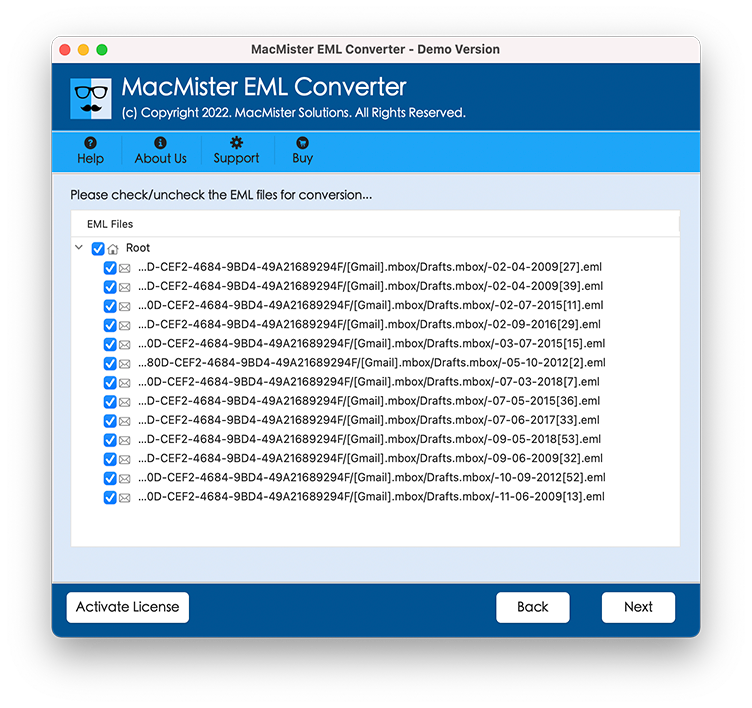
- Launch the EML to Yahoo Mail for Mac and Add individual EML files or select an EML folder.
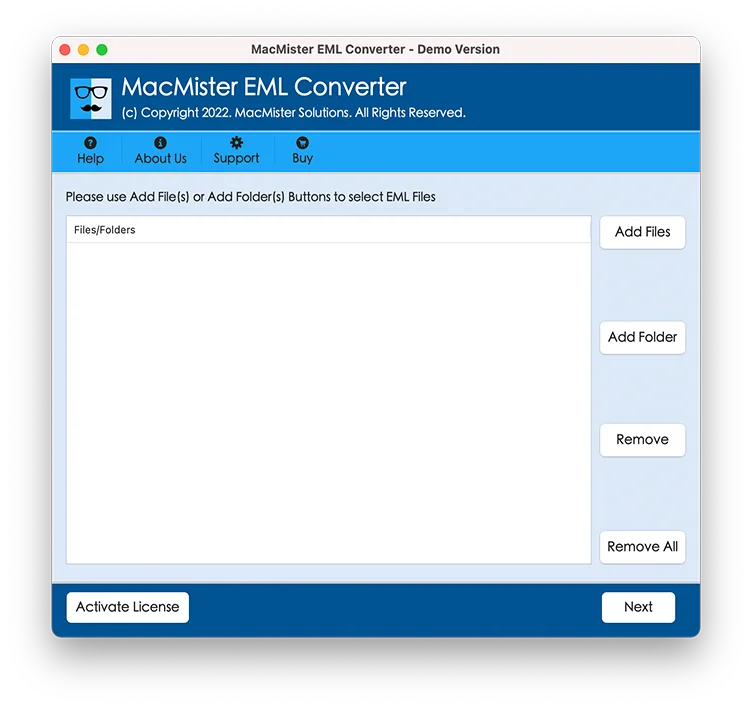
- Select the required messages.
- Choose Yahoo Mail as the destination.
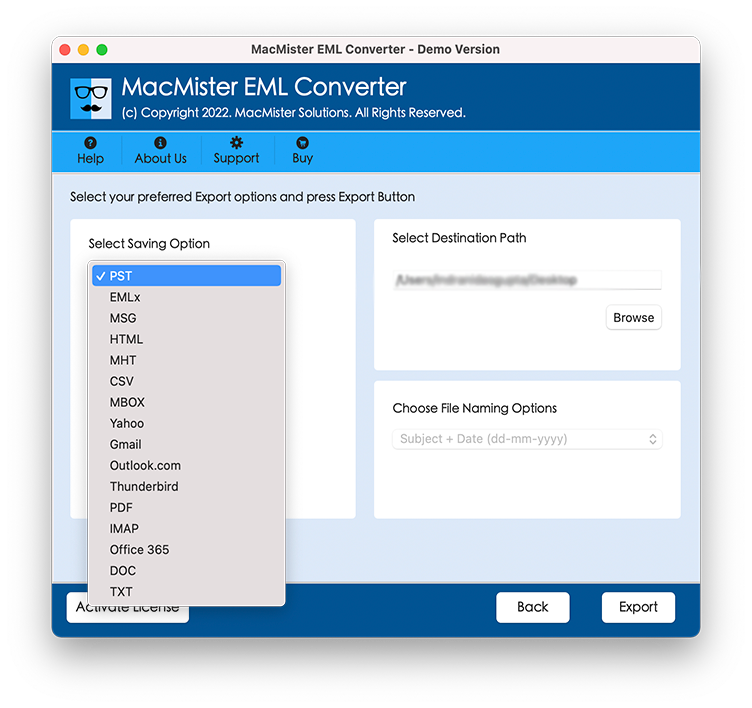
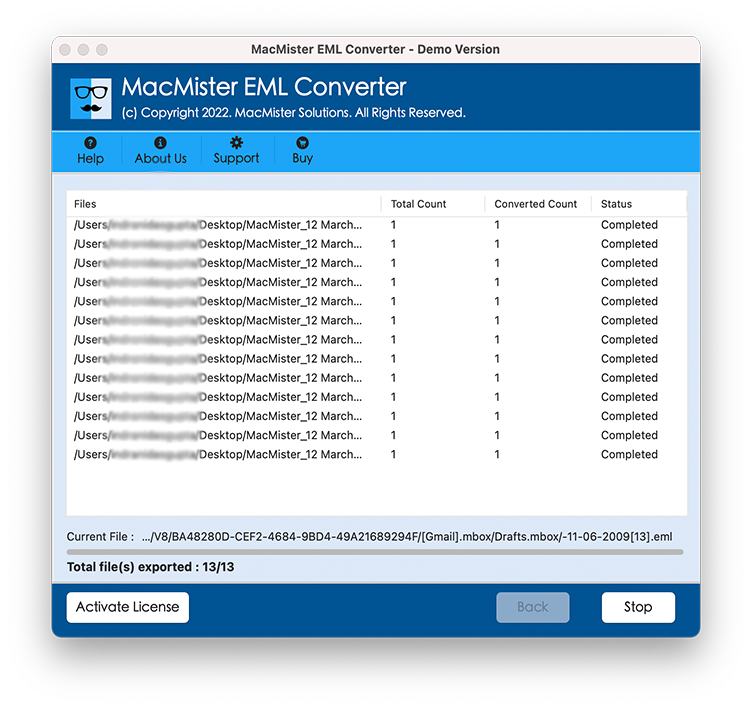
- Enter the required Yahoo Mail account details and click on export button to Start the migration process.
Free Trial Availability
The software provides a free trial so users can evaluate the software and its available features before proceeding with a complete migration. This can be useful for checking the workflow with 25 EML files to Yahoo Mail Account before handling a larger mailbox collection.
Conclusion
Adding EML files to Yahoo Mail on Mac can be challenging because Yahoo Mail does not offer a straightforward option for importing a large collection of standalone EML files directly. A manual approach through a compatible email client can work for smaller collections, but it may involve additional configuration and repeated steps.
For larger EML collections, EML to Yahoo Mail for Mac provides a dedicated alternative with direct EML-to-Yahoo Mail migration, batch processing, attachment support, filtering options, and a free trial. By using a purpose-built converter, Mac users can organize the migration process and transfer their required EML email data to Yahoo Mail without depending entirely on a manual workflow.