
This guide explains how to transfer Bluehost email to Office 365 on Mac, including the manual approach, and Bluehost to Office 365 Tool for Mac that can transfer data in bulk for quick migration.
Moving an email account from one hosting platform to another requires careful handling of existing mailbox data. When users decide to transfer email from Bluehost to Office 365, they generally need to move old messages, folders, attachments, and other email information to the new Microsoft 365 mailbox.
Bluehost email accounts support IMAP, which allows mailbox data to be accessed through compatible email applications and transferred between supported email systems. Microsoft 365 also provides an IMAP migration method for moving email from another IMAP-enabled service. However, the migration process requires proper account configuration, mailbox access, and verification after the transfer.
Overview of Bluehost and Office 365
Bluehost provides hosting and email services that allow users to create domain-based email accounts. Bluehost email can be accessed through webmail or configured with supported email applications using IMAP. IMAP stores messages on the mail server and allows users to access the same mailbox from different applications or devices.
Bluehost’s email environment can therefore serve as the source mailbox during a migration. Users may have years of emails organized into folders, along with attachments and other message information that they want to retain after changing email platforms.
Office 365, now commonly referred to as Microsoft 365, provides cloud-based email through Exchange Online along with applications and services for communication and collaboration. Users can access their mailbox through Outlook on the web, desktop applications, and supported mobile devices.
Microsoft provides an IMAP migration option for transferring email from external IMAP-enabled systems. However, IMAP migration focuses on email messages and folders; contacts, calendars, and tasks are not transferred through this method.
Why Transfer Bluehost Email to Office 365?
- To move business email into the Microsoft 365 environment.
- To access Bluehost email through an Office 365 mailbox.
- To centralize email management within Microsoft services.
- To retain older email conversations after changing providers.
- To keep important attachments and business correspondence available.
- To manage multiple organizational mailboxes through Microsoft 365.
- To move away from a hosting-based email environment.
For organizations, transferring historical messages can be especially important because old emails may contain customer communication, invoices, project discussions, and other business records.
Manual Method to Transfer Bluehost Email to Office 365
One manual approach is to configure both the Bluehost and Office 365 accounts in an IMAP-compatible email application such as Apple Mail or Thunderbird. Bluehost confirms that IMAP-compatible clients can be used for email migration.
- Create and configure the required Office 365 mailbox.
- Add the Bluehost account to an IMAP-compatible email application.
- Add the Office 365 account to the same application.
- Allow both mailboxes to synchronize.
- Select the required Bluehost messages and folders.
- Copy or move them into the corresponding Office 365 folders.
- Wait for the destination mailbox to synchronize.
- Sign in to Office 365 and verify the transferred emails.
For larger migrations, Microsoft provides an administrator-based IMAP migration process using migration endpoints and migration batches. Mailboxes must exist in Microsoft 365 before the migration, and administrators may need source mailbox credentials and a CSV containing mailbox information.
Risks and Limitations of the Manual Method
- Time-consuming – Moving thousands of emails manually can take considerable time.
- Folder handling – Individual folders may require separate selection and transfer.
- Attachment delays – Large attachments can increase migration time.
- Connection dependency – The process depends on stable internet and server connectivity.
- Human errors – Incorrect selection can result in skipped or misplaced messages.
- Multiple accounts – Repeating the procedure for several mailboxes increases the workload.
- Migration limits – Microsoft’s IMAP migration has specific limits, including a maximum of 500,000 items per mailbox and a 35 MB maximum message size.
- Limited data types – IMAP migration transfers email and folders but does not migrate contacts, calendars, or tasks.
Advanced Bluehost to Office 365 Tool for Mac
For users who want to avoid repeatedly copying emails between accounts, the MacMister Bluehost Email Backup Tool for Mac provides a dedicated migration option for transferring Bluehost emails to Office 365. Instead of using an intermediate email application for repeated copy-and-paste operations, the tool provides a direct Bluehost to Office 365 migration option. Users can connect their Bluehost account, select the required mailbox data, provide the Office 365 destination account, and start the migration.
The tool can be useful for both individual mailbox transfers and larger migration tasks where numerous messages or multiple folders need to be processed. It also provides filtering options so users can narrow the data before starting the transfer.
Working Steps
Step 1 – Launch the Tool: Open the Bluehost to Office 365 on Mac.
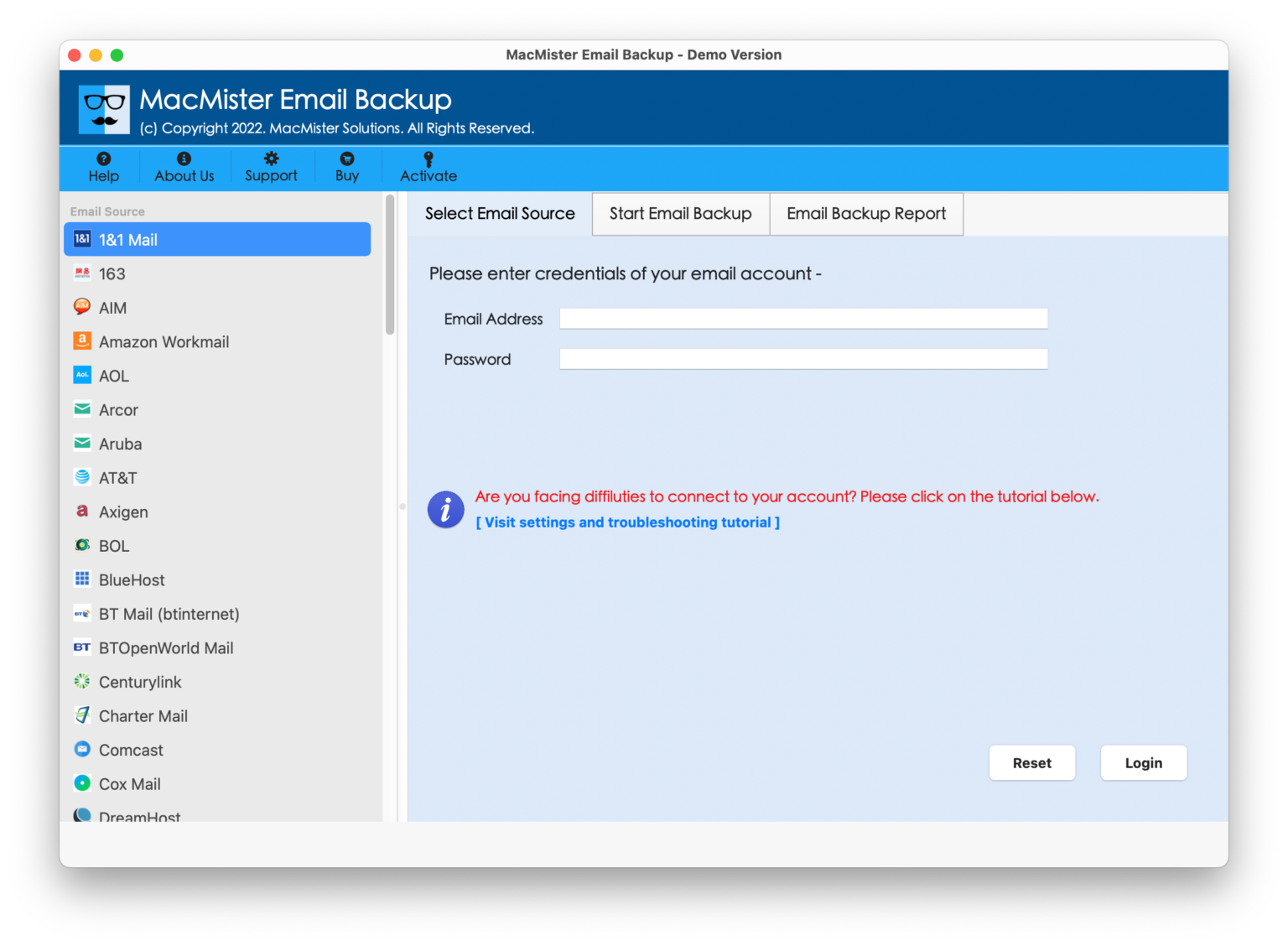
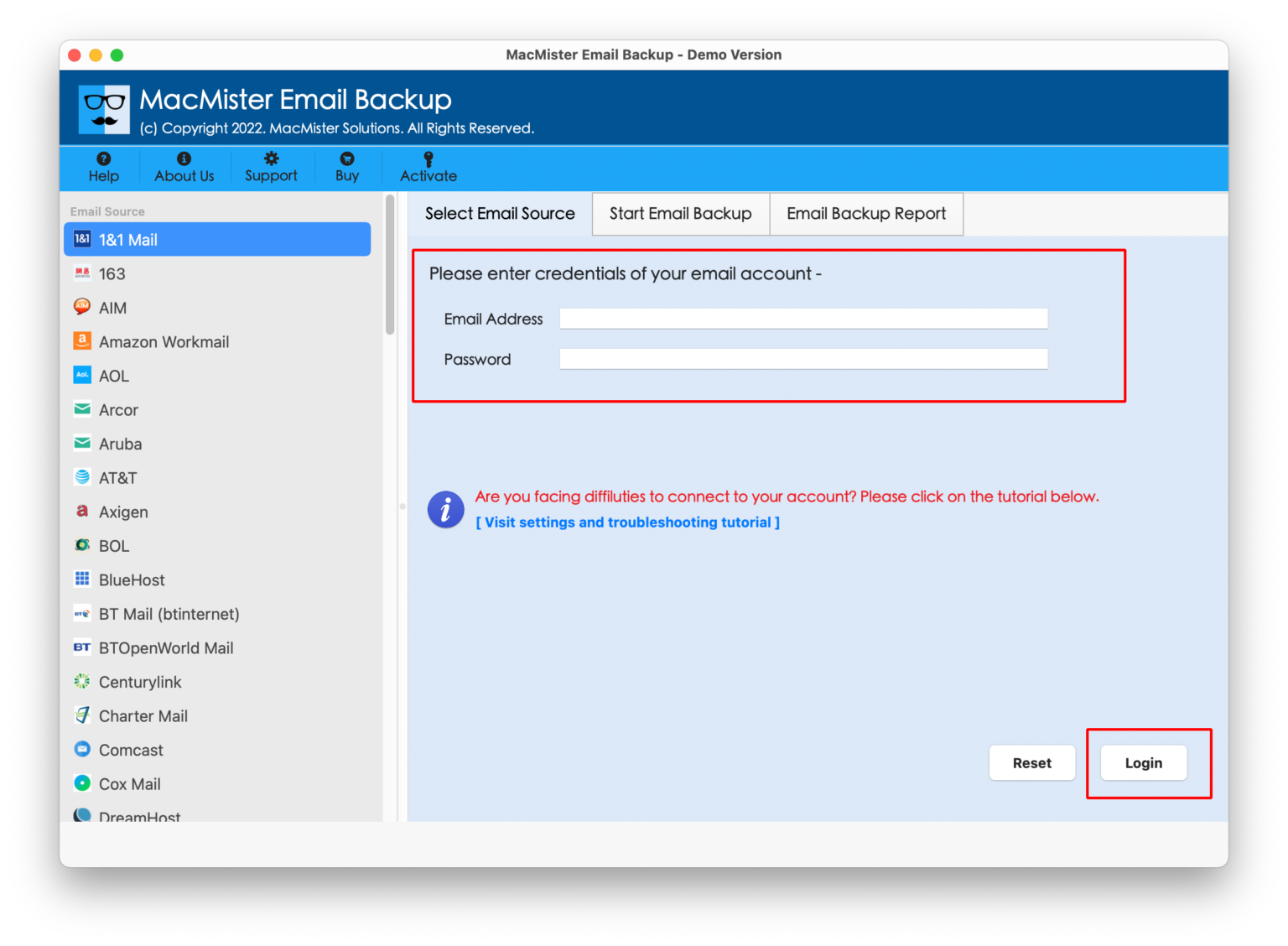
Step 2 – Add Bluehost Account: Select Bluehost and enter the required account credentials.
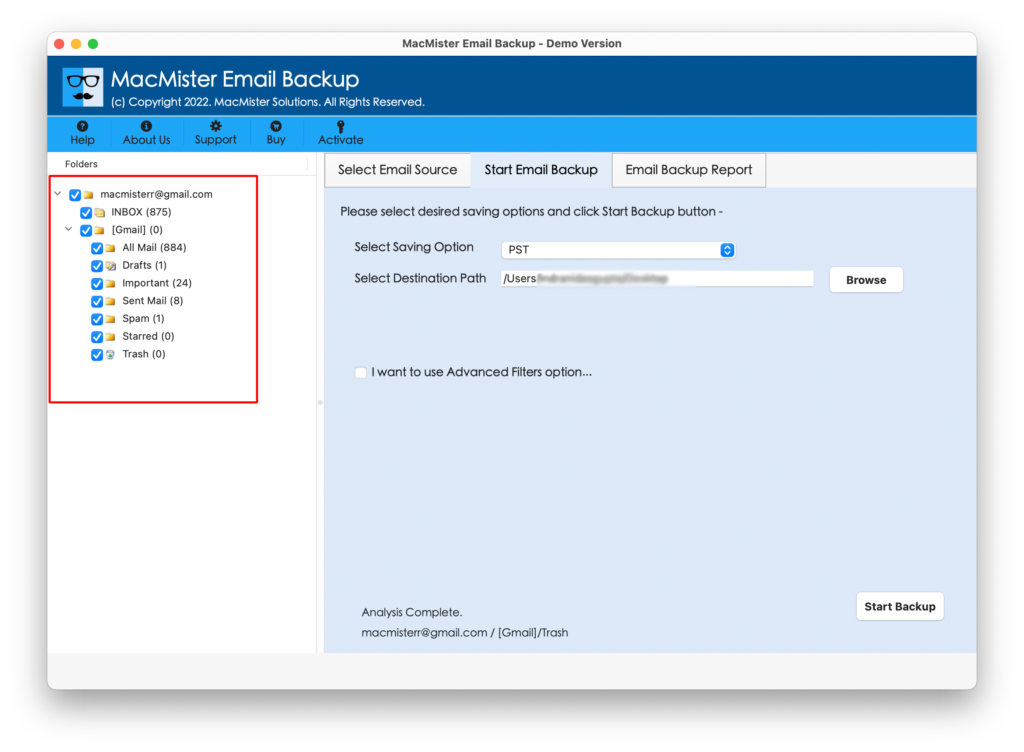
Step 3 – Select Mailbox Data: Choose the required emails or folders from the loaded Bluehost mailbox.
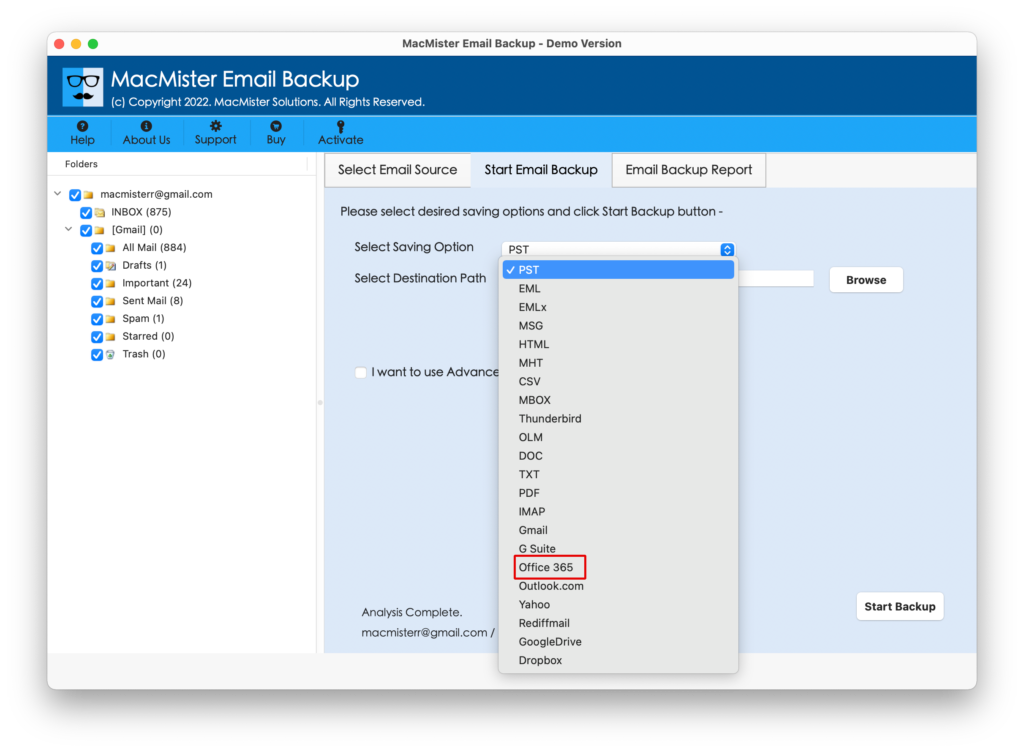
Step 4 – Select Office 365: Choose Office 365 as the destination.
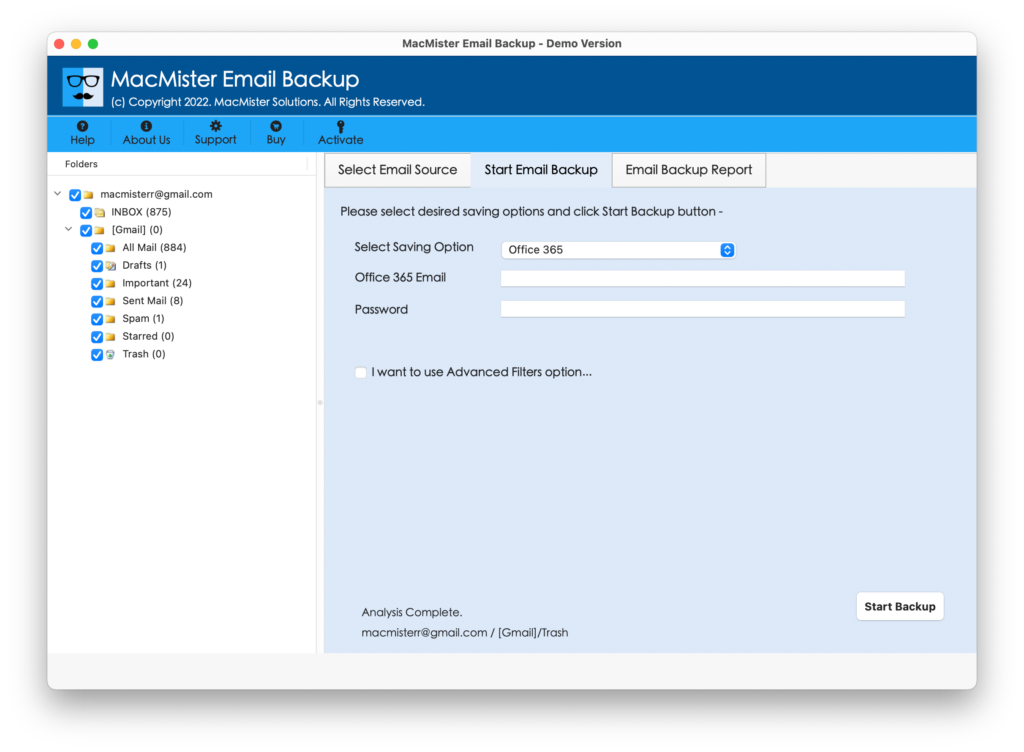
Step 5 – Fill Login Details: Provide the required Microsoft 365 account details. Click on Start Backup button
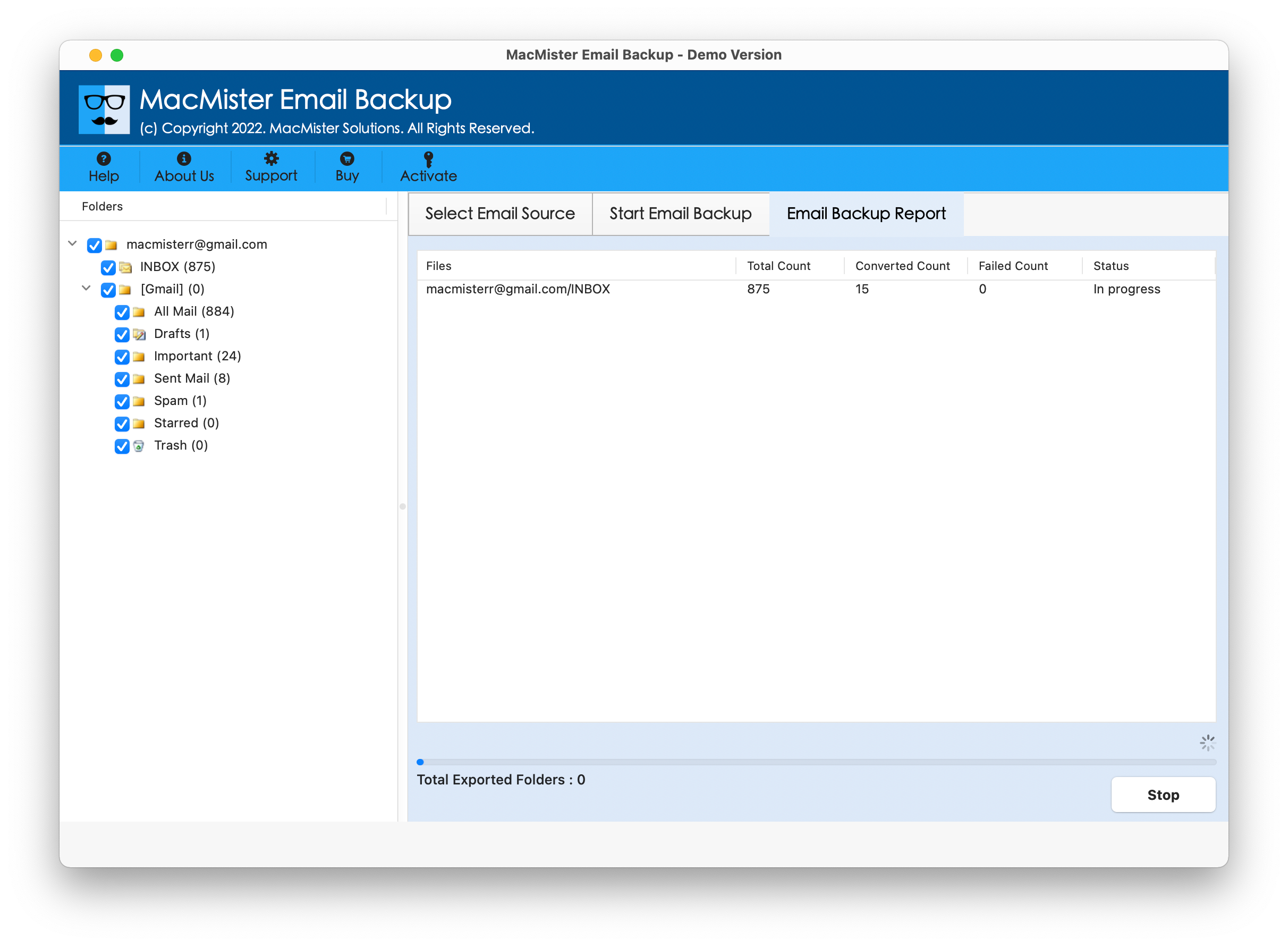
Step 6 – Migration Starts: Software starts working and migrate emails
Features of Bluehost to Office 365 Tool for Mac
- Direct Bluehost to Office 365 Migration – Provides a direct migration path from the Bluehost mailbox to an Office 365 account.
- Batch Migration – Allows multiple emails to be processed together instead of transferring messages one at a time.
- Attachment Support – Transfers email messages along with their associated attachments.
- Folder Organization – Helps retain the existing mailbox folder structure during migration.
- Selective Migration – Users can choose the required mailbox content rather than processing the entire account.
- Mac Support – The tool supports Mac editions including macOS Tahoe, macOS Sequoia, macOS Sonoma, macOS Ventura, macOS Monterey, macOS Big Sur, macOS Catalina, macOS Mojave, and macOS High Sierra.
Conclusion
Transferring email from Bluehost to Office 365 on Mac can be performed manually through an IMAP-compatible email application or through Microsoft’s IMAP migration facilities. The manual approach can be suitable for smaller mailboxes, but large accounts may involve repetitive folder handling, attachment transfer, account configuration, and post-migration verification.
Microsoft’s IMAP migration process can migrate email and mail folders, but it has defined limitations regarding item counts, message size, and other mailbox data types.
For users who need a more structured approach, the Bluehost to Office 365 Tool for Mac provides a direct migration option with batch processing, attachment support, selective migration, and multiple filtering choices. Users can select the required mailbox data, transfer it directly to Office 365, and verify the results after completion.
Before beginning a complete migration, it is advisable to verify the Bluehost credentials, destination Office 365 mailbox, required folders, and migration requirements. After the transfer, checking the destination mailbox helps confirm that the required emails and attachments are available in the new Office 365 environment.

