MSG files are commonly used to save individual email messages from Microsoft Outlook. These files can contain the complete email content along with attachments and other message information. Mac users who have a collection of MSG files may want to access them through Apple Mail for easier email management.
However, Apple Mail does not directly support importing individual MSG files. Since Apple Mail works with mailbox formats such as MBOX, MSG files need to be converted into a compatible mailbox format before they can be imported.
This guide explains how to convert MSG files to Apple Mail on Mac by smart solution in simple working steps.
Overview of MSG and MBOX
MSG is an email message file format primarily associated with Microsoft Outlook. Each MSG file can store an individual email along with information such as sender, recipient, subject, date, message body, attachments, and other available attributes.
MBOX is a mailbox storage format supported by Apple Mail and several other email applications. Unlike an individual MSG file, an MBOX file can contain multiple email messages within a mailbox.
Therefore, converting MSG files into MBOX provides a suitable way to prepare saved Outlook messages for use with Apple Mail on Mac.
Why Convert MSG Files to Apple Mail?
Users may need to move MSG files to Apple Mail for several reasons –
- To access saved Outlook messages on a Mac.
- To consolidate multiple MSG files into an Apple Mail mailbox.
- To view archived email messages through Apple Mail.
- To retain important email attachments.
- To preserve sender, recipient, subject, date, and other email attributes.
- To handle a large collection of saved MSG messages more conveniently.
- To make previously saved Outlook emails accessible through an Apple Mail environment.
When the number of MSG files increases, processing each file separately can become inconvenient. An automated conversion solution can simplify the process by handling multiple messages together.
Why Use application for MSG files to Apple Mail Migration?
Apple Mail does not provide a built-in option to directly import individual MSG files. As a result, MSG data needs to be converted into a compatible format before it can be imported into Apple Mail.
When working with a large number of MSG files, an automated converter can reduce repetitive work and help maintain important email information during conversion. This is particularly useful when the MSG files contain attachments, different folders, and numerous message attributes.
Smart Solution to Transfer MSG files to Apple Mail
MacMister MSG Converter for Mac provides smart migration solution for converting MSG files into MBOX format for Apple Mail. The software allows users to add individual MSG files or multiple files and convert them into MBOX without processing every message separately.
The tool supports bulk conversion, which is useful when users have hundreds or thousands of MSG files. Instead of handling every message individually, users can add multiple files or folders and process them in a single conversion session.
Key Features of MSG to Mac Mail Tool
- Bulk MSG File Conversion – The batch mode allows users to add multiple MSG files or complete folders containing MSG messages. This helps process a large collection of files together instead of converting them one by one.
- Convert MSG Files to Apple Mail – The software converts Outlook MSG files into Apple Mail. This provides a practical way to access saved MSG messages on Mac.
- Preserve Email Attachments – The software retains email attachments during the MSG to Apple Mail conversion process. This helps keep associated documents, images, and other attached files available with their respective messages.
- Save Email Attributes – Important email attributes can be preserved during conversion, including sender, recipient, subject, date, message content, and other available message properties.
- Maintain Email Organization – Users can process MSG files according to their existing file organization. Folder-based processing makes it easier to handle large collections of saved email messages.
- Apple Mail Support – The converted MBOX output can be imported into Apple Mail, allowing users to access their MSG email data through Apple’s native email application.
- Selective Conversion – Users can choose the required MSG files or folders for conversion instead of processing the entire collection. This helps avoid unnecessary conversion of unwanted messages.
- User-Friendly Interface – It provides a simple interface for adding MSG files, selecting the required options, choosing the output location, and starting the conversion process.
- Support for Major Mac Editions – The software supports major macOS editions, including macOS Tahoe, Sequoia, Sonoma, Ventura, Monterey, Big Sur, Catalina, Mojave, High Sierra, and Sierra.
How to Convert MSG Files to for Apple Mail?
- Download and launch MSG to Apple Mail tool.
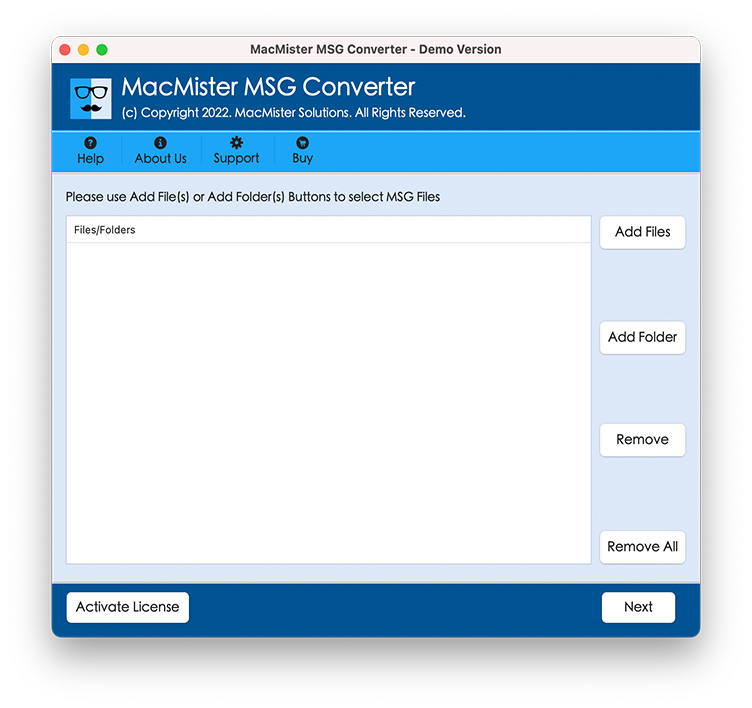
- Add individual MSG files or folders containing multiple MSG files.
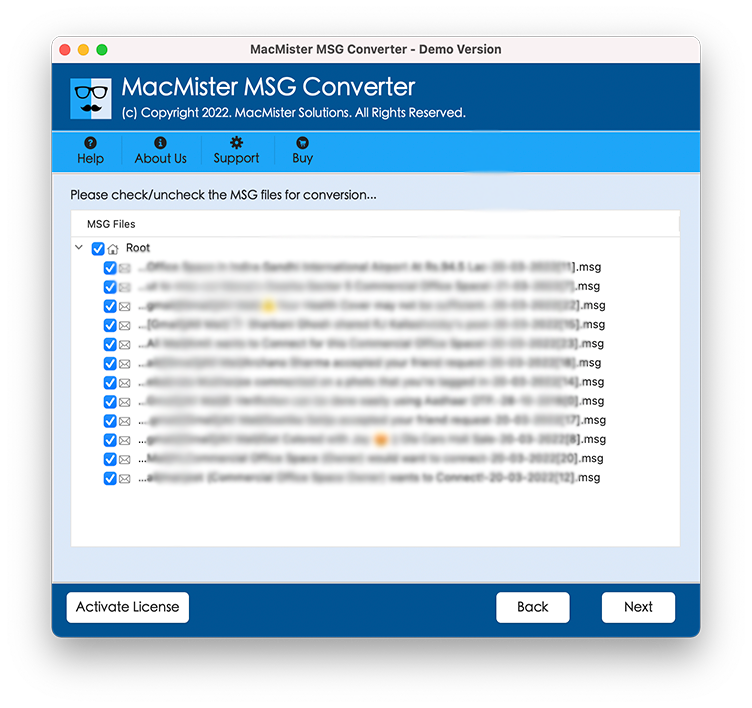
- Select the required messages for conversion.
- Choose MBOX as the output format.
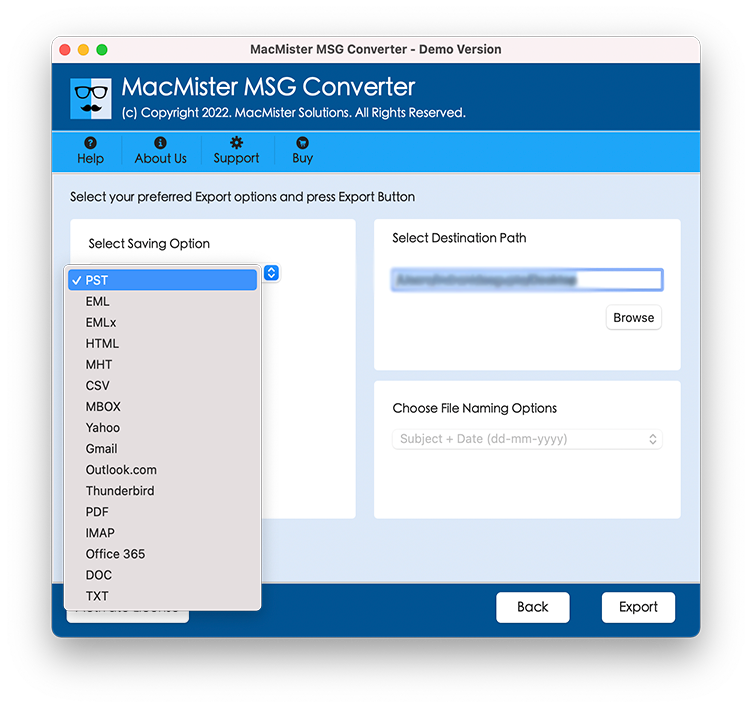
- Select the destination location for saving the converted mailbox.
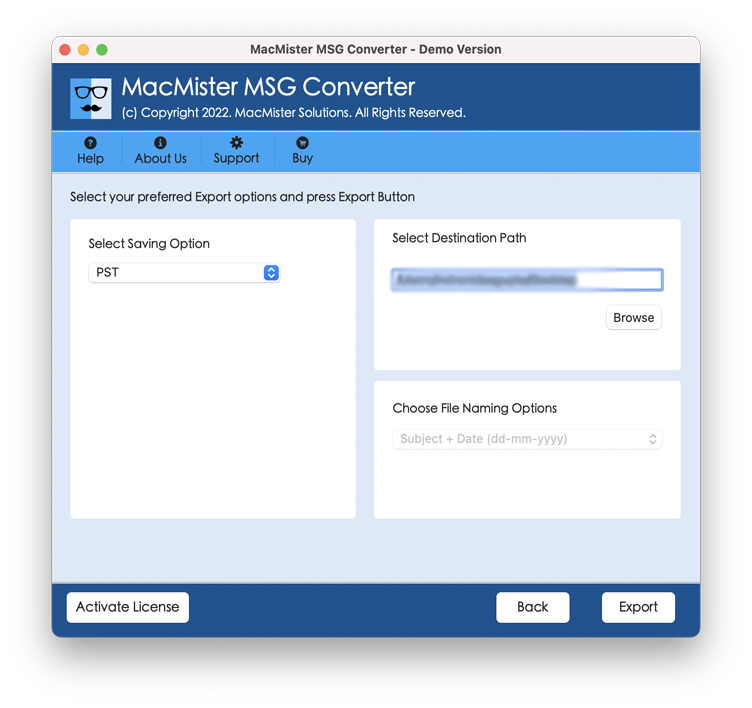
- Start the MSG to MBOX conversion process.
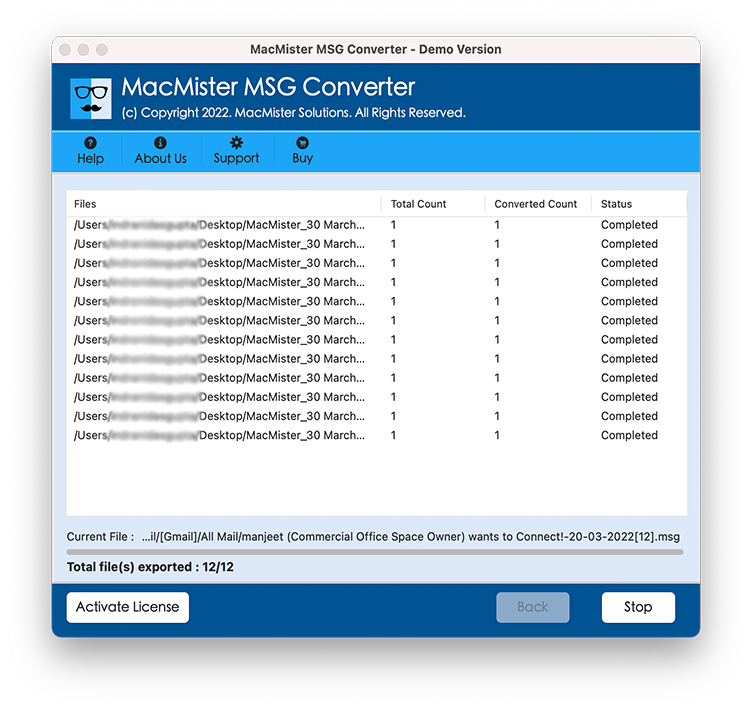
For large collections, the bulk mode can be used to process multiple MSG files together.
Conclusion
MSG files cannot be directly imported into Apple Mail, making format conversion necessary when users want to access saved Outlook messages through the Mac email application. Converting MSG files into MBOX provides a practical way to prepare the messages for Apple Mail.
For users dealing with a large number of MSG files, the MSG to Apple Mail tool provides advanced conversion solution with bulk processing, attachment preservation, email attribute retention, selective conversion, folder-based processing, and support for major Mac editions. After generating the MBOX file, users can import it into Apple Mail and access their converted email messages on Mac.