In today’s interconnected digital landscape, managing multiple email accounts efficiently is essential for individuals and businesses alike. AOL Email and Outlook 365 are two popular platforms offering robust email solutions with distinct features and capabilities. Migrating AOL webmail messages to Office 365 streamlines communication and enhances productivity by centralizing email management. This blog explores the process of knowing how do I get my AOL email on Outlook 365, outlining the benefits of this integration and providing a manual method for users to follow.
AOL Email is a longstanding email service provider known for its user-friendly interface and features such as unlimited storage, spam protection, and integration with AOL’s other services. On the other hand, Outlook 365, part of Microsoft’s Office 365 suite, offers a comprehensive email solution coupled with a suite of productivity tools like Word, Excel, and PowerPoint. Outlook 365 boasts advanced features such as intelligent inbox management, calendar integration, and seamless collaboration, making it a preferred choice for individuals and businesses seeking an all-encompassing email and productivity solution.
Reasons for AOL Webmail Messages to Office 365
- Centralized Email Management – By accessing AOL Email within Outlook 365, users can consolidate their email accounts, streamlining communication and simplifying inbox management.
- Integration with Productivity Tools – Outlook 365 seamlessly integrates with other Microsoft applications, allowing users to access emails, calendars, and documents in one unified platform, enhancing productivity and collaboration.
- Enhanced Features – Outlook 365 offers advanced features such as Focused Inbox, email categorization, and real-time collaboration, providing users with a more efficient and personalized email experience.
- Unified Experience Across Devices – With Outlook 365, users can access their AOL Email accounts from any device, ensuring a consistent and seamless experience whether they’re working on a desktop, laptop, or mobile device.
- Security and Reliability – Outlook 365 leverages Microsoft’s robust infrastructure and security measures, ensuring data integrity, privacy, and protection against cyber threats, providing users with peace of mind.
Manual Method for Getting AOL Email on Outlook 365 –
- Open Outlook 365 – Launch Outlook 365 and navigate to the “File” menu.
- Add Account – Select “Add Account” and choose “Manual setup or additional server types,” then click “Next.”
- Choose Email Service – Select “POP or IMAP” and click “Next.”
- Enter Account Information – Fill in your AOL Email account details, including your name, AOL email address, account type (IMAP or POP3), and incoming/outgoing mail server information. For AOL Mail IMAP settings, use “imap.aol.com” for incoming mail server and “smtp.aol.com” for outgoing mail server. Ensure to input your AOL username and password correctly.
- Configure Server Settings – Configure incoming server settings by selecting “IMAP” or “POP3” and entering the respective server details provided by AOL. For AOL IMAP settings, use port 993 for incoming server and port 587 for outgoing server. Enable SSL encryption for added security.
- Test Account Settings – Click on “Test Account Settings” to verify the configuration and ensure successful connectivity between Outlook 365 and AOL Email.
- Finish Setup – Once the test is successful, click “Next” and then “Finish” to complete the setup process. Outlook 365 will now synchronize with your AOL Email account, allowing you to access AOL emails, contacts, and calendars directly within the Outlook interface.
By following these steps, users can manually add their AOL Email account to Outlook 365, enabling seamless integration and centralized email management.
Drawbacks of the Manual Method
- Manual configuration requires significant time and effort, potentially causing productivity setbacks.
- Human error during setup may lead to configuration mistakes, impacting email functionality.
- Manual setup lacks automation, increasing the likelihood of overlooking critical settings and adjustments.
- Users with limited technical expertise may struggle with the intricate setup process, requiring external assistance.
- Incorrect configuration or mishandling during manual setup can result in data loss or corruption.
Smart Solution to Copy AOL Email to Outlook 365
To avoid the drawbacks of the manual method, MacMister AOL Mail Backup Tool for Mac is a comprehensive solution designed to simplify the migration process from AOL Email to Outlook 365. With its user-friendly interface and advanced features, including selective data migration, folder hierarchy preservation, and support for large mailboxes, It ensures a seamless transition. The tool facilitates effortless transfer of emails, contacts, calendars, and attachments from AOL Email to Outlook 365 while maintaining data integrity and security. Whether you’re an individual user or a business entity, The AOL to Outlook 365 Tool provides a convenient and efficient solution for migrating your email data, ensuring a smooth transition with minimal effort and maximum reliability.
For Mac users who need to move AOL mailbox data to Office 365, a dedicated migration utility can simplify the process. The AOL Mail to Office 365 for Mac tool is designed to transfer AOL emails directly to an Office 365 account without requiring users to manually configure every mailbox setting. It can be useful when handling a large number of emails or when the manual configuration process becomes difficult to manage.
Why Choose the Smart Migration Solution
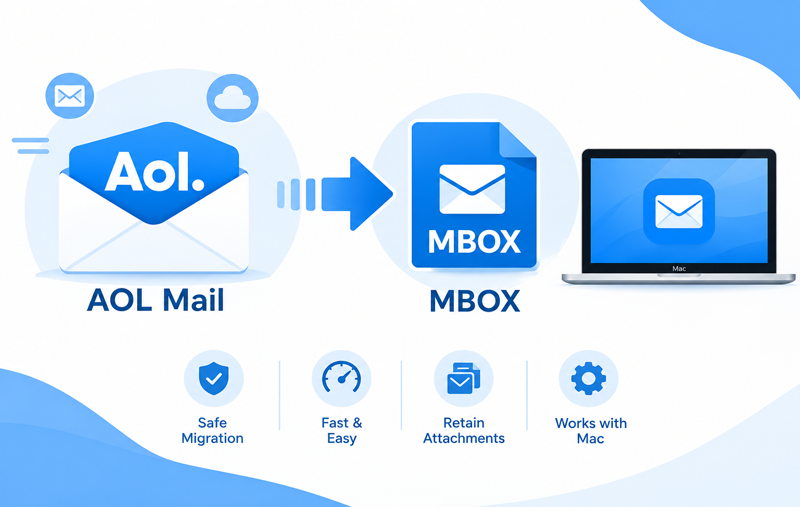
- Direct Migration: Transfers AOL mailbox data directly to Office 365 without requiring an intermediate file format.
- Bulk Email Transfer: Allows multiple AOL emails, folders & accounts to be processed together.
- Selective Migration: Lets users choose specific mailbox folders or data according to their requirements.
- Folder Structure Preservation: Maintains the existing AOL folder hierarchy during the migration process.
- Attachment Support: Transfers emails along with their associated attachments.
- Email Formatting: Preserves the available email content and formatting during migration.
- Mac Compatibility: Designed to work on all Mac systems for AOL to Office 365 migration tasks.
- Simple Interface: Provides an easy-to-follow interface for users with different levels of technical experience.
The migration approach can be useful for users who want to move their AOL mailbox to Office 365 while keeping the original email organization. Before performing a complete migration, it is advisable to verify the destination account, available storage, and required mailbox permissions.
Frequently Asked Questions
Q. Can I access AOL Email in Outlook 365?
Ans. Yes, AOL Email can be configured with Outlook using the appropriate account and server settings. Users can also migrate AOL mailbox data to an Office 365 account when they want to move their email data to Microsoft’s cloud environment.
Q. Can I transfer AOL emails to Office 365 on Mac?
Ans. Yes. AOL emails can be transferred to Office 365 on Mac using a suitable migration method. A dedicated AOL to Office 365 migration tool can simplify the process on all macOS editions – Tahoe, Sequoia, etc.
Q. Will AOL email attachments be transferred to Office 365?
Ans. Attachments can be transferred along with their associated emails when the migration method supports attachment processing. Users should verify the destination mailbox and storage capacity before starting a large migration.
Can I migrate only selected AOL folders?
Ans. Yes. A selective migration option allows users to choose specific folders or mailbox data instead of transferring the entire AOL account. This can be useful when only particular emails are required in Office 365.
Q. Is manual AOL to Office 365 migration suitable for large mailboxes?
Ans. Manual configuration can work for basic account access, but handling a large mailbox may require more time and repeated steps. For larger migrations, a dedicated migration utility can help process mailbox data in bulk.
Q. Can I migrate AOL emails with their folder structure?
Ans. Yes, the migration process can preserve the existing folder organization so that emails remain arranged according to their original mailbox structure.
Conclusion
Moving AOL Email data to Office 365 can help users manage their mailbox through Microsoft’s cloud-based environment. Manual account configuration is one option for accessing AOL messages, but it may involve several settings and additional effort when a large amount of mailbox data needs to be handled.
For Mac users looking for a more organized migration approach, the AOL Email Backup Tool for Mac provides a direct way to transfer AOL mailbox data to Office 365. With support for bulk migration, selective folders, attachments, and folder structure preservation, it can simplify the overall process while reducing repetitive manual work. Users should review their mailbox requirements and verify the destination Office 365 account before beginning the migration.