EML files are commonly used to store individual email messages along with their content, attachments, and other email details. Mac users may need to open or transfer these files to Mozilla Thunderbird when they want to manage multiple EML messages through a desktop email client.
When a large number of EML files need to be moved, handling them individually can become time-consuming. Users may also want to preserve the original folder structure, attachments, formatting, and other important email properties during the transfer.
This guide discusses different approaches for saving EML files to Thunderbird on Mac, including a manual method, and powerful EML to Thunderbird Mac solution for users handling larger collections of email files.
Overview of EML to Thunderbird Migration
EML is a widely supported email file format that stores individual messages. Thunderbird can work with email data through its own mailbox structure, but importing a large collection of standalone EML files may require additional steps.
The suitable method depends on the number of EML files, their folder organization, and whether the emails contain attachments or other important information. For larger collections, a dedicated migration tool can help simplify the process while keeping the email data organized.
Why Save EML Files to Thunderbird?
There can be several reasons for moving EML files to Thunderbird –
- Thunderbird provides a desktop-based environment for managing email messages.
- Users can manage email data from different sources within one email client.
- EML files can be easier to access when organized through Thunderbird folders.
- Attachments remain available with their corresponding email messages.
- Thunderbird provides options for organizing imported email data into folders.
- Users can manage a large collection of saved email files from a single application.
Manual Method to Save EML Files to Thunderbird
One possible approach is to use Thunderbird’s available import or file-handling options to bring EML messages into the application. Depending on the Thunderbird version and the number of files, users may need to handle the EML messages individually or use an additional mailbox-format approach.
This method may be suitable when only a small number of EML files need to be transferred. However, managing hundreds or thousands of files manually can require considerable time and may make it difficult to maintain the original folder organization.
Limitations of the Manual Method
- Handling EML files individually can be time-consuming.
- Large numbers of files may require considerable manual effort.
- Maintaining the actual folder structure can be difficult.
- Attachments may require additional checking after import.
- Bulk migration is not always convenient with basic methods.
- Different Thunderbird versions may offer different import options.
- Managing files from multiple folders manually can become repetitive.
EML to Thunderbird Tool for Mac
For users who need a simpler way to manage a large collection of EML files, MacMister EML to Thunderbird for Mac provides a dedicated solution. The software is designed to transfer EML email data into Thunderbird without requiring users to handle each message individually. It can also save EML files in Thunderbird directly if configured or MBOX format, which can be used with Thunderbird for managing mailbox data.
The tool supports multiple EML files and folders, making it useful when email data is stored across different locations. Users can select the required files or folders according to their migration requirements instead of processing every EML message separately.
The EML to Thunderbird for Mac tool can preserve important email information during migration. Email data, attachments, sender and recipient details, subject, date, formatting, and other available message properties can be retained. It also supports maintaining the existing folder organization, which helps users keep related email messages together after the migration. The software is also useful for bulk EML migration. Instead of importing individual messages one at a time, users can process multiple EML files together. This can make the migration more manageable when dealing with a large collection of archived or exported emails.
Another useful feature is its support for attachments and different email elements. Messages containing images, hyperlinks, signatures, and attachments can be processed along with the email content. This helps maintain the important information contained within the original EML files. The software is designed for Mac users and supports multiple macOS editions, making it suitable for users working with EML files on different Mac systems. It provides a straightforward interface so users can manage the migration without dealing with complicated file conversion procedures.
How to Save EML Files to Thunderbird in Simple Steps
- Launch the Software – Open MacMister EML to Thunderbird for Mac on your Mac system.
- Add EML Files – Add individual EML files or select folders containing multiple EML messages.
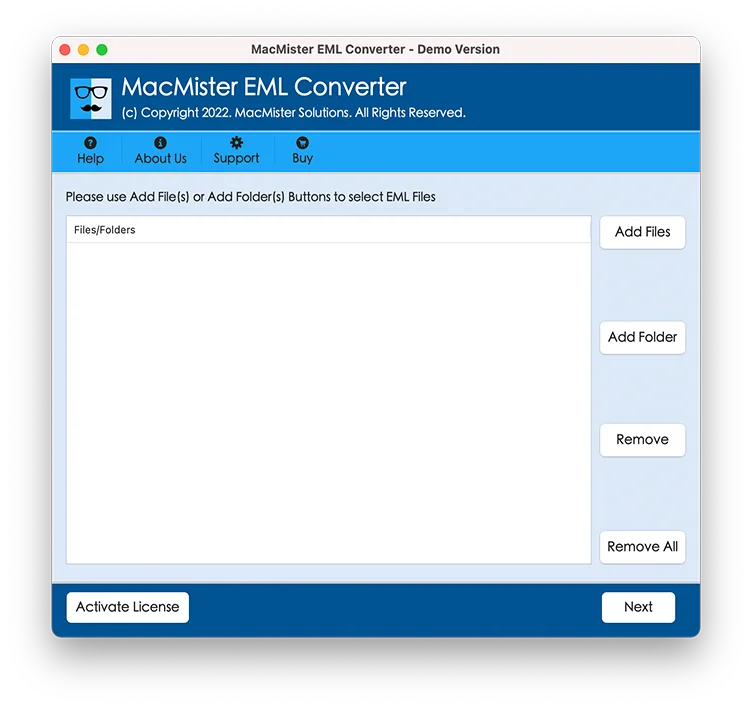
- Select Required Data – Choose the required files, folders, or email data for migration.
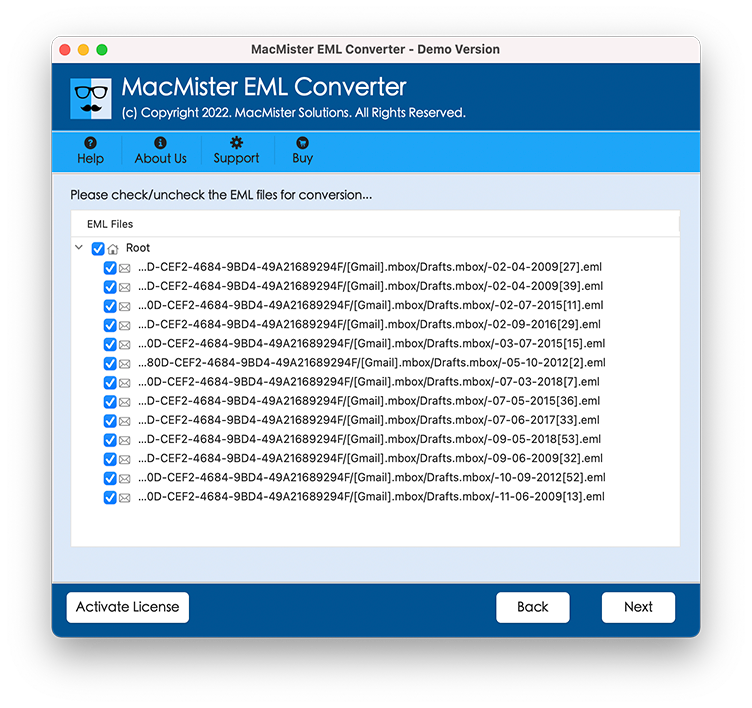
- Choose Thunderbird – Select Thunderbird as the destination or choose MBOX as the saving option.
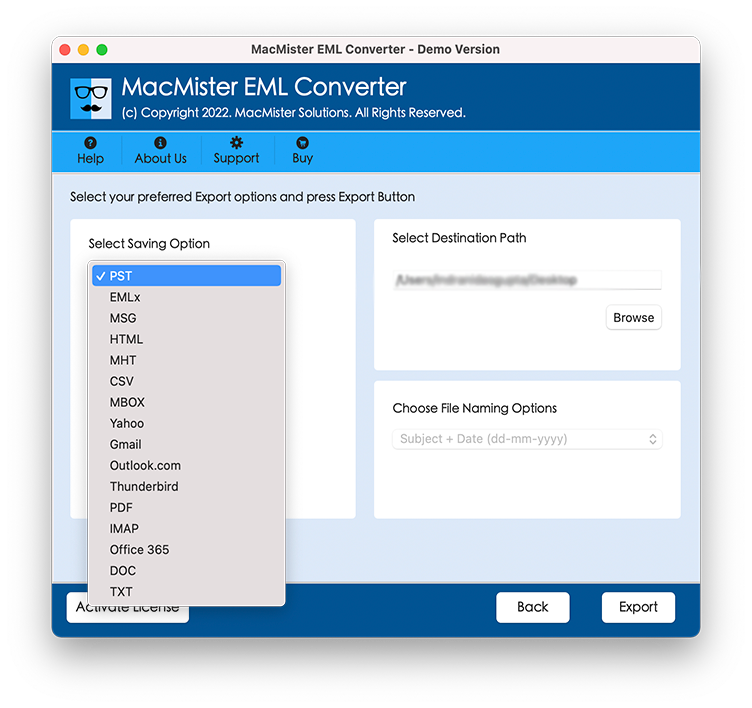
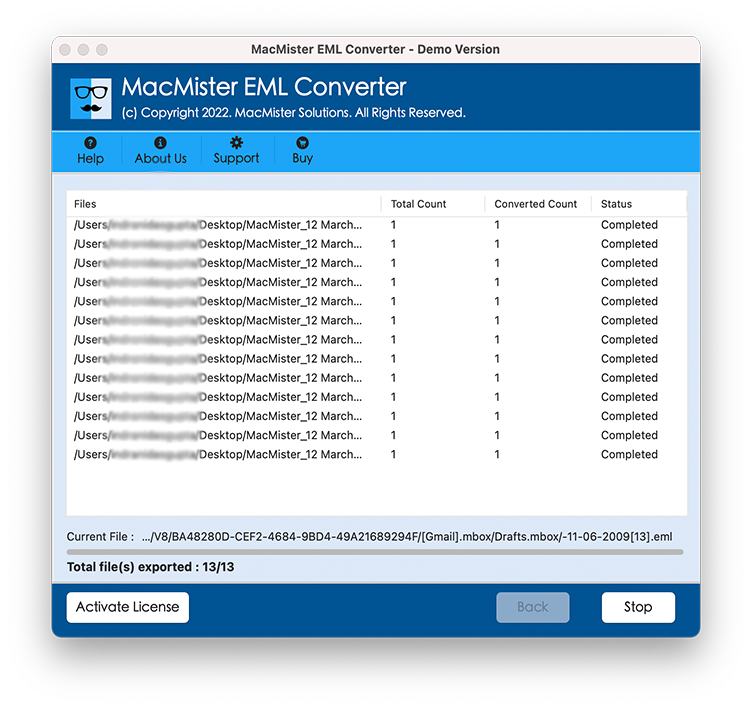
- Start Migration – Begin the process and allow the software to transfer the selected EML data.
Key Features of EML to Thunderbird Tool
- Multiple EML File Support – Add and process multiple EML files together.
- Folder Support – Select complete folders containing EML messages for migration.
- Bulk Migration – Transfer a large collection of EML files in a single process.
- Attachment Support – Preserve attachments along with their respective email messages.
- Folder Hierarchy – Maintain the existing folder structure during migration.
- Email Formatting – Retain the original formatting and content of email messages.
- Metadata Preservation – Keep important details such as sender, recipient, subject, and date.
- MBOX Support – Save EML data in MBOX format for use with Thunderbird.
- Selective Migration – Select specific EML files or folders according to your requirements.
- Multiple macOS Support – Supports macOS editions -Tahoe, Sequoia, Sonoma, Ventura, Monterey, Big Sur, Catalina, Mojave, and High Sierra.
- User-Friendly Interface – Provides a simple interface for managing EML email migration on Mac.
Final Thoughts
Saving EML files to Thunderbird on Mac can be straightforward for a small number of messages, but handling a large collection manually may require additional time and effort. Folder organization, attachments, formatting, and email details can also make the process more demanding when many files are involved.
A dedicated EML to Thunderbird solution can make bulk email migration easier by allowing users to process multiple files and folders while retaining important mailbox information. Mac EML Converter of MacMister provides support for EML files, attachments, folder structure, email formatting, metadata during the migration for Thunderbird.