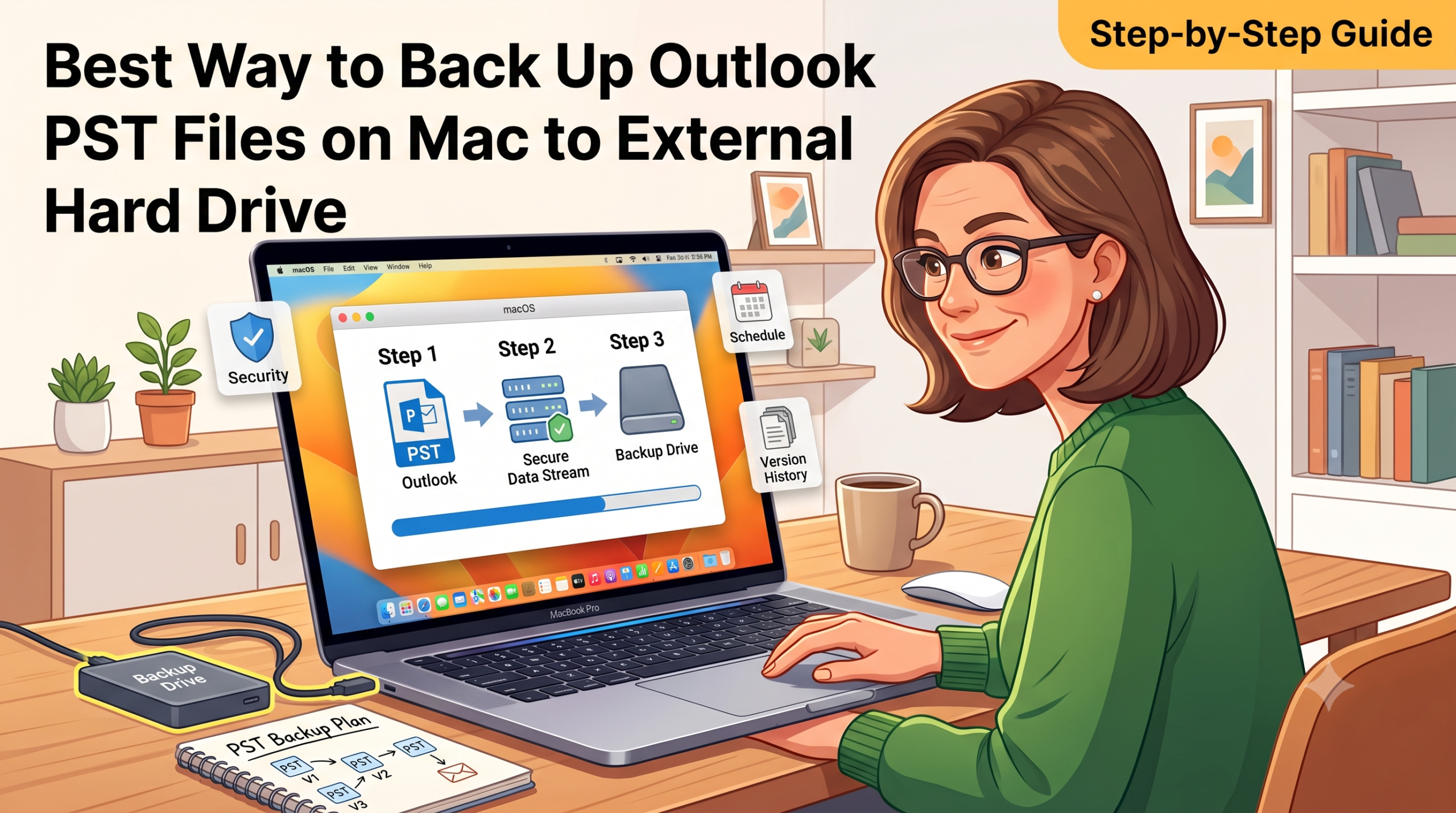
The Microsoft Outlook for Windows uses a proprietary archival system for storing emails, contacts, calendars, tasks, and attachments known as PST (Personal Storage Table) files. For professionals and companies that have switched from Windows to the macOS platform or that manage historical Windows Outlook backups on a Mac computer, it is essential to create safe backups of PST files on an external hard drive.
Unfortunately, backing up PST files on a Mac is not as straightforward as drag-and-drop. Due to the complexity and the size of PST files (which can go as far as 50 GB), incorrect approaches to the process might result in corruption of the sector, loss of attachments, and other issues.
The following guide will explain how to create the best and most effective PST file backups on a Mac computer.
The Technical Challenges of Backing Up PST Files on macOS
Prior to backing up a PST file, one must be aware of the reasons why PST files should be backed up in Mac computers as follows:
- Unsupported File Handler: The operating system of Mac computers has no support for PST files as native file handlers. Hence, the opening of a PST file by double clicking on the file itself will not work in Finder without the presence of a viewer or converter application.
- File System Restrictions: External hard drives are typically manufactured with FAT32 file system formatting, which allows for only 4 GB maximum size per file limit. Copying a 15 GB PST file to such drives will automatically terminate during the transfer process due to size limit restrictions.
- Databases Are Locked When In Use: Transferring a locked database file during use by any Outlook for Mac application will end up creating a corrupted version of the file.
- Massive Single File Transfer Problems: In case of transferring large file sizes over USB connection, interruptions can lead to corrupted destination file due to the necessity of sector level verification.
Step 1: Prepare Your External Hard Drive for Mac
Make sure your external hard drive is formatted in such a way that you can store your PST files in large amounts without size restrictions or any read or write problems:
Step 1: Connect your external hard drive or solid state drive (SSD) to your Mac using the USB-C or Thunderbolt connection.
Step 2: Open the Disk Utility from Applications>Utilities. Alternatively, you can press Command+Space and type Disk Utility in the search bar.
Step 3: Click on your external drive in the left hand menu. Check the format.
Step 2: Native Backup Methods (Manual Copy & Time Machine)
Method A: Safe Manual File Transfer
In order to copy your PST files to an external drive manually without corrupting them:
Step 1. Close Microsoft Outlook or all email software by using Command (⌘)+Q keys.
Step 2. Open the Finder and locate the location where you have stored your PST files.
Step 3. Right click on the .pst file, select Copy, go to the external drive via Finder, right click on it and then click on Paste item.
Step 4. Now, right click on both the source and destination PST files and click on Get info (Command+I) and make sure that the size of both of them is exactly equal in bytes.
Method B: Include External Drives in Time Machine
If you maintain local PST files on your Mac’s internal drive:
Step 1. Connect your external backup drive.
Step 2. Go to System Settings > General > Time Machine.
Step 3. Time Machine will automatically index and back up local .pst files alongside your system data during regular backup cycles.
Step 3: Convertible Backup (Convert PST to MBOX/EML/PDF for Long-Term Safety)
Whereas simply copying the raw PST file into an external drive protects your raw data, you will still be at the mercy of Microsoft Outlook or some third party application to access the data stored in that file in the future.
In order to have the most accessible and redundant backup system, the ideal solution is to convert the PST file into standard formats for Mac like MBOX, EML, or PDF on your external drive.
Backup Outlook PST file on Mac External Drive using MacMister PST Converter Tool
With the use of a specific software such as MacMister PST Converter for Mac, you will be able to convert and backup the PST files on macOS operating system.
Step-by-Step Guide of the Software for Backup and Conversion of PST Files to an External Drive:
Step 1. Connect your external hard drive to the system and launch MacMister PST Converter for Mac.
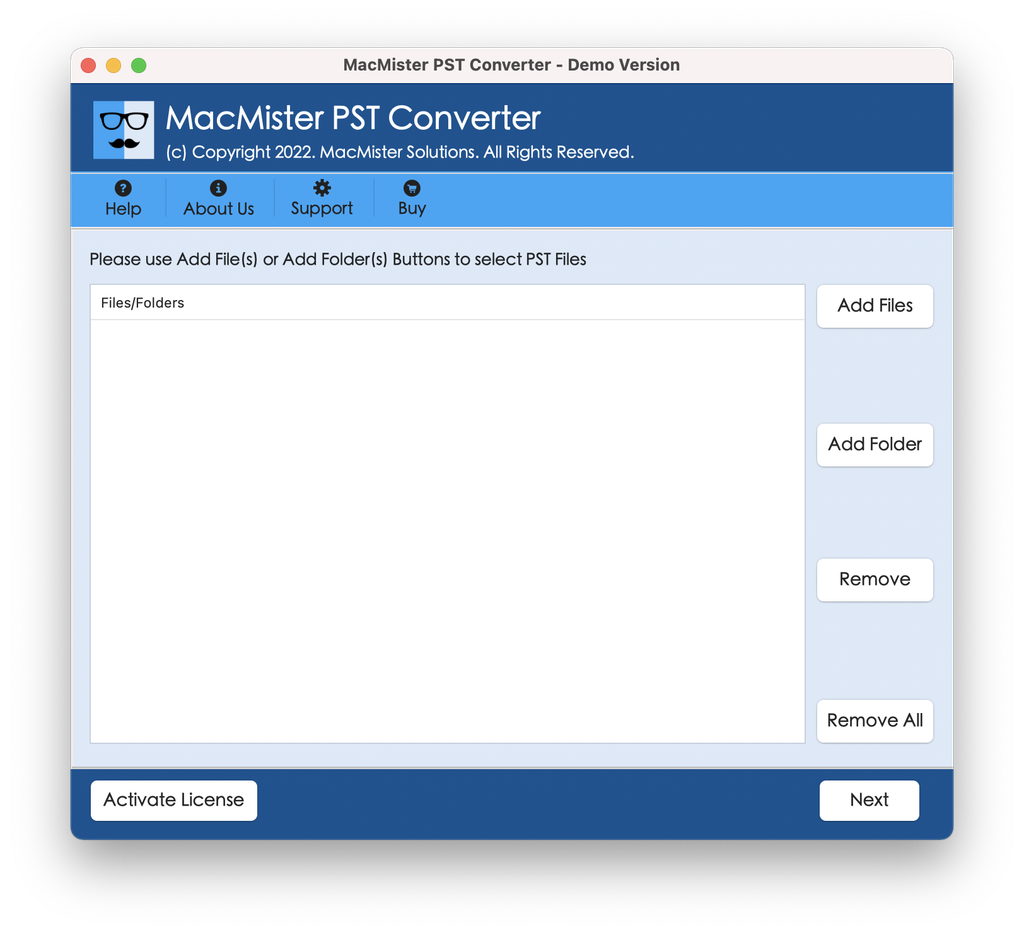
Step 2. Click on Add File(s) or Add Folder option to load the PST files in the software interface.
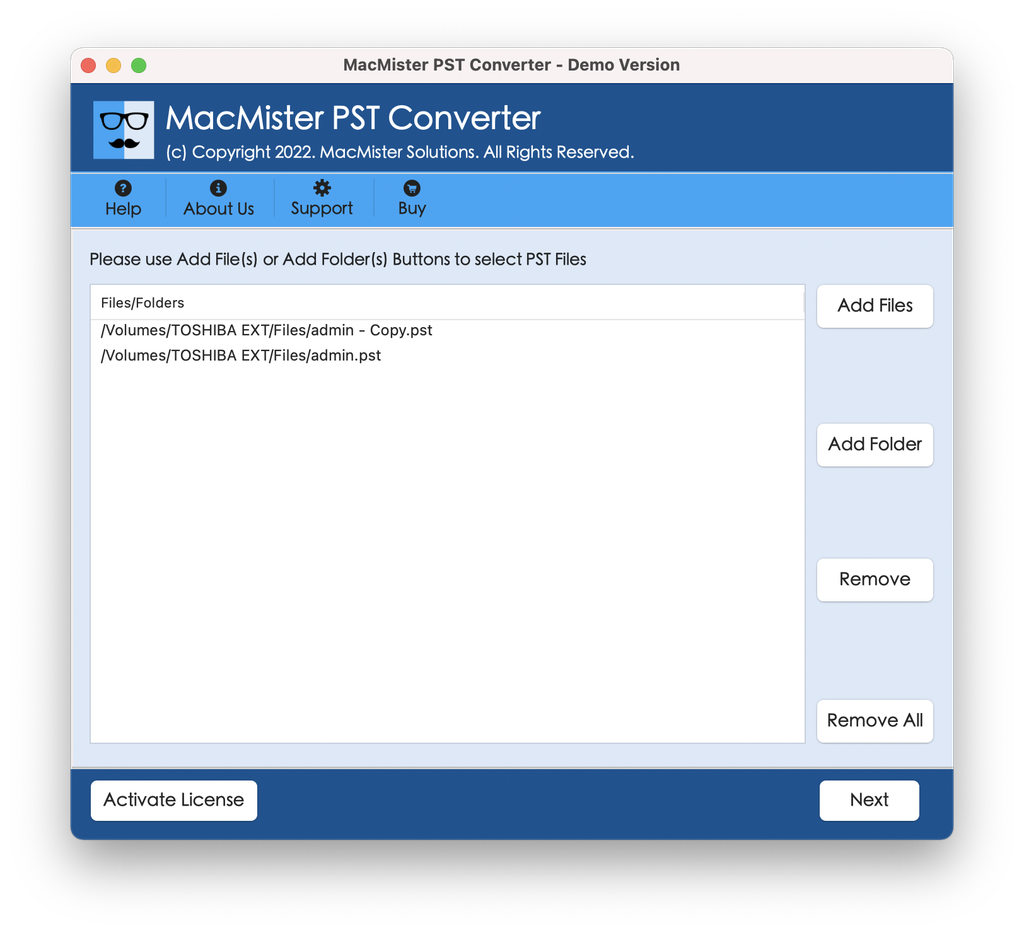
Step 3. Select the format of output file (for example, MBOX for use with Apple Mail and PDF for portable archive in long run).
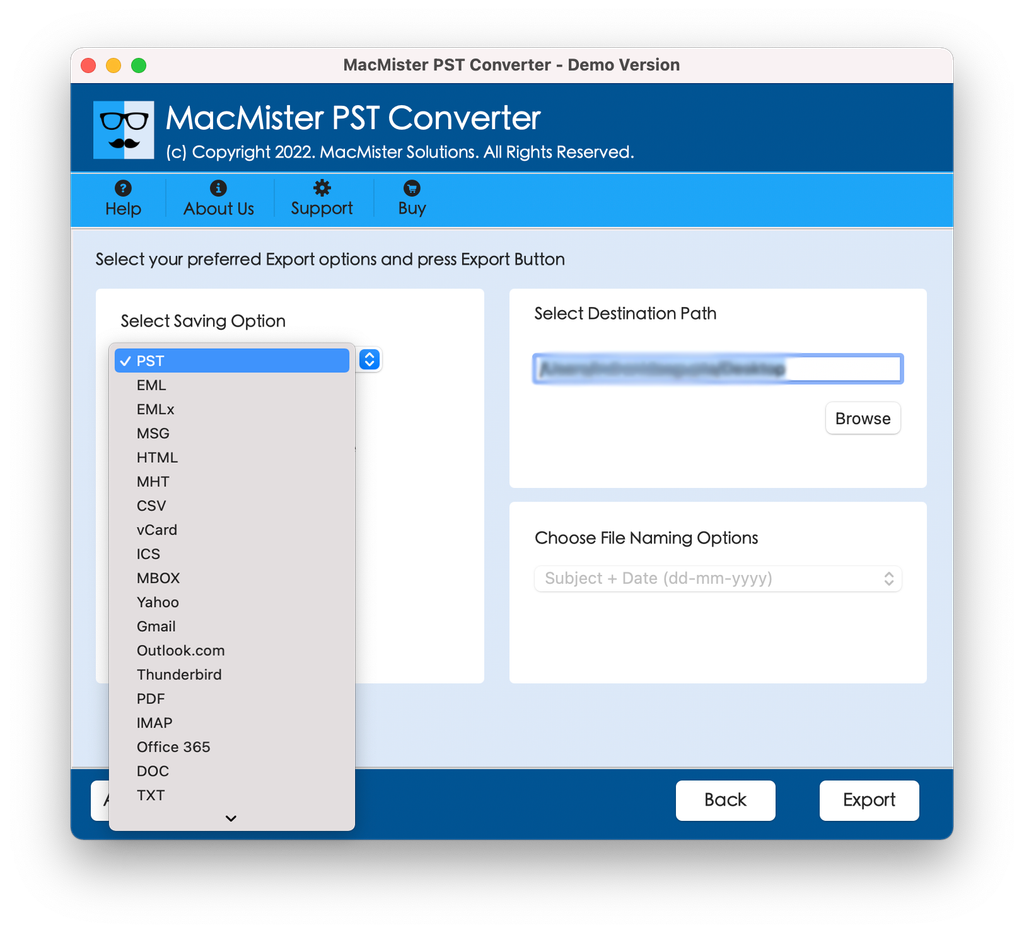
Step 4. Set additional options and select the connected external hard drive as the destination folder. Click Export.
Step 5. The software will process the PST sector, extract all information, and create backup on the external hard drive.
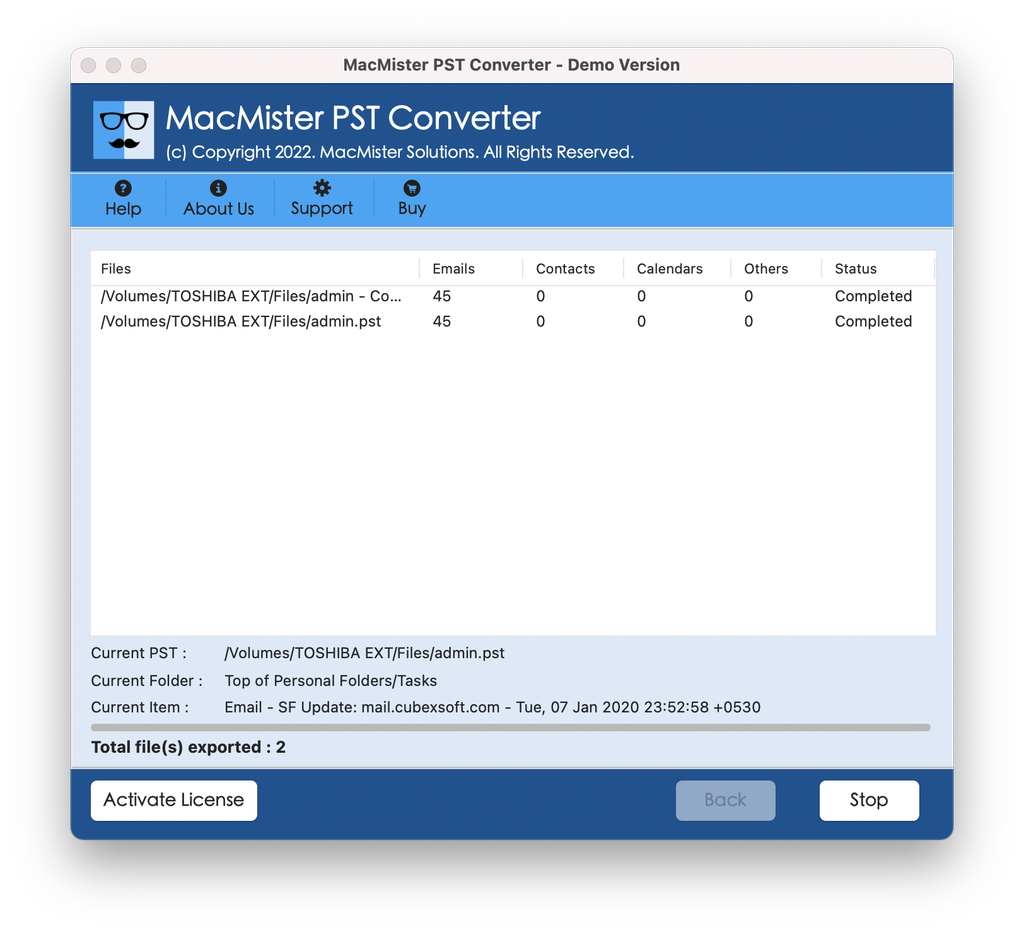
Main Features of the Application –
- Make your external hard drive your direct saving location, where multi-gigabyte PST files will be directly converted to the external storage medium.
- Saves all metadata fields such as “To, From, CC, BCC”, time-stamp headers, inline images, and attachments (PDF files, ZIPs, Word documents).
- You can convert your PST file backups to MBOX file (Apple Mail/Thunderbird), EML files (individual files), OLM file (Outlook for Mac), or PDF file (offline reading).
- Keeps your folders structure same as your original Inbox, Sent Items, and custom subfolders.
Conclusion
The process of making backups of Outlook PST files onto the external hard drive in Macintosh computers is essential when it comes to protecting your e-mail correspondence from hardware malfunctions, loss, or any other changes when moving platforms.
If you want to save your important e-mails without any software, MacMister PST Converter for Mac is the one for you because it will provide you with an easy opportunity to make additional backups of your e-mails in MBOX or PDF formats on your external hard drive.