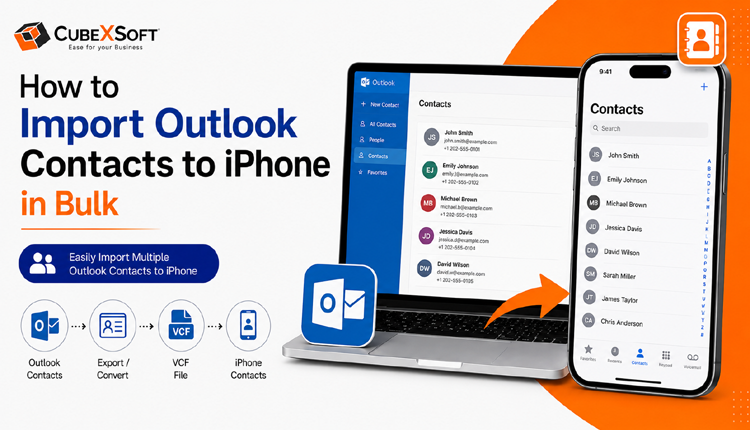
Summary: Need to move contacts from an Outlook PST file to your iPhone? Whether you’re moving from a Windows computer to an iPhone or have received a PST file from someone else, you can transfer the contacts without much hassle. For a free solution, Outlook can be used to convert contacts into vCard files and send them to an email account connected to your iPhone. Once the vCard attachment is opened on the iPhone, the contacts can be saved directly to the Contacts app.
While this approach works well for transferring a small number of contacts, it can become tedious because each contact has to be handled individually. It also isn’t ideal for users who need to migrate a large contact list. For bulk transfers, a dedicated PST to iPhone migration tool can provide a faster and more convenient alternative. In this guide, we explain both approaches step by step so you can choose the method that best fits your needs.
Why Do Users Import PST Contacts to iPhone?
There are several situations where users may need to move contacts stored in a PST file to an iPhone. Some common reasons include:
- Switching to a new iPhone: Users who move from a Windows computer or Outlook environment to an iPhone may want to bring their existing contacts with them instead of creating them again manually.
- Keeping client information accessible: Business users often have important customer, vendor, or colleague details stored in Outlook. Having these contacts on an iPhone makes it easier to reach people while working remotely or traveling.
- Accessing PST contacts without Outlook: A PST file may be received from a colleague, organization, or previous computer. If Outlook is not installed, transferring the contacts to an iPhone can provide a convenient way to access the saved information.
- Managing contacts from one device: Professionals may prefer keeping their important contacts on their iPhone so they can quickly make calls, send messages, or compose emails without switching between different applications or devices.
- Avoiding repeated contact creation: Moving an existing PST contact list saves users from manually entering names, phone numbers, email addresses, and other details one by one. This can be especially helpful when the PST contains a large number of contacts.
Quick Steps to Import PST Contacts to iPhone for Free
If you want to transfer contacts from a PST file to your iPhone without using a third-party tool, you can follow this simple four-phase process:
- Open the PST file in Outlook Classic and make the contacts available in the Outlook Contacts folder.
- Export the required contacts from Outlook in a format that can be opened on an iPhone.
- Create a new email using an account that is already configured on your iPhone, attach the exported contact file, and send the message to yourself.
- Open the email and its contact attachment on your iPhone. Use the Contacts app to add the contact information to your device.
Important Note: These steps provide a quick overview of the free PST to iPhone contact transfer process. The actual procedure involves several smaller steps. For complete instructions, follow the detailed steps provided under each phase below.
Phase 1: Import PST Contacts into Outlook Desktop
The first step is to load the PST file into Outlook Classic so that you can access the contacts stored inside it. Follow these steps:
- Open Outlook Classic on your computer and go to File.
- Select Open & Export, then click Import/Export to launch the Import and Export Wizard.
- Choose Import from another program or file and click Next.
- Select Outlook Data File (.pst) from the available file types and click Next.
- Click Browse, locate the PST file saved on your computer, select it, and click Next.
- Select the Contacts folder or other contact folders you want to import. Choose the appropriate duplicate-handling option if prompted.
- Click Finish to begin importing the selected PST contacts into Outlook.
Once the process is complete, open the People/Contacts section in Outlook and verify that your PST contacts have been imported successfully. You can then proceed to the next phase to export these contacts for transfer to your iPhone.
Phase 2: Export Contacts from Outlook Classic
Once the PST contacts have been imported into Outlook, the next step is to save the required contact as a file that can be transferred to your iPhone.
- Open Outlook Classic and navigate to the People/Contacts section.
- Find and select the contact you want to transfer.
- Click File and choose Save As.
- Enter a suitable name for the contact file and select the folder where you want to save it.
- Click Save to create the exported contact file.
Repeat these steps for any other contacts you want to move to your iPhone.
Phase 3: Send the Contact File to Your iPhone
After saving the contact file, send it to an email account that you can access on your iPhone.
- Open your preferred email service on the computer and create a new email message.
- Click the Attach File option and browse to the contact file you saved from Outlook.
- Enter the email address of an account that is configured on your iPhone.
- Add a subject if required, then click Send.
The contact file will now be available as an attachment in the email account accessible from your iPhone.
Phase 4: Save the Contact on Your iPhone
The final step is to open the attachment on your iPhone and add the contact to the Contacts app.
- Open the Mail or relevant email app on your iPhone.
- Go to the Inbox and open the message containing the contact attachment.
- Tap the attached contact file to open it.
- If an app-selection or sharing menu appears, choose Contacts or the option to add the contact to your device.
- Review the contact information and tap Save Contact or Create New Contact, depending on the iOS version.
The contact will now be added to your iPhone’s Contacts list.
Note: This manual approach is practical when you only need to transfer a small number of contacts. If the PST contains hundreds or thousands of contacts, saving and sending each contact individually can be time-consuming. In that situation, a dedicated PST Contacts Converter tool may be more convenient for bulk transfer.
Drawbacks of the Manual Method
Although the manual method can be used to transfer PST contacts to an iPhone, it has several limitations that users should consider:
- The process involves multiple steps, from opening the PST in Outlook to exporting, emailing, and saving contacts on the iPhone.
- Users need Microsoft Outlook Classic to access contacts stored in the PST file, which may not be convenient for everyone.
- Moving a large number of contacts individually can require significant time and effort.
- If contacts are stored across several PST files, the same process may need to be performed repeatedly.
- The multi-stage procedure can be confusing for users who are not familiar with Outlook and contact file management.
Pro Software to Import Contacts from PST to iPhone
For users who need to move a large number of contacts from PST files to an iPhone, a professional conversion tool can offer a more convenient alternative to the manual process. An Outlook PST Converter can simplify the migration by allowing users to process PST data without going through multiple import and export stages in Outlook.
The application is designed with a straightforward interface, making it suitable for both home users and business professionals. Users can load their PST files, select the required contact data, and proceed with the conversion without needing advanced technical knowledge. A dedicated solution can also be helpful when handling multiple PST files or large contact lists. Instead of transferring contacts individually, users can process their data in a more organized manner, reducing repetitive work and saving time.
Another advantage is the focus on maintaining the integrity of the original contact information during conversion. Users can transfer their contact data while minimizing the possibility of missing important details or manually entering information again.
Overall, a professional PST conversion utility provides a simpler approach for users who want a faster and more manageable way to prepare PST contacts for use on an iPhone.
Final Verdict
In this blog, we have discussed different ways to transfer contacts from a PST file to an iPhone. The manual method can work for a small number of contacts, but it involves several steps and requires Outlook Classic, which may make the process inconvenient for many users.
For those who need to move a large number of contacts, a professional PST conversion solution can provide a simpler and more efficient approach. It reduces repetitive tasks and makes bulk contact migration easier, even for users without advanced technical knowledge.
Ultimately, the choice depends on your requirements, the number of contacts, and the approach you are comfortable with. If you are considering a professional tool, using its trial version first can help you evaluate its functionality before opting for the licensed version.

